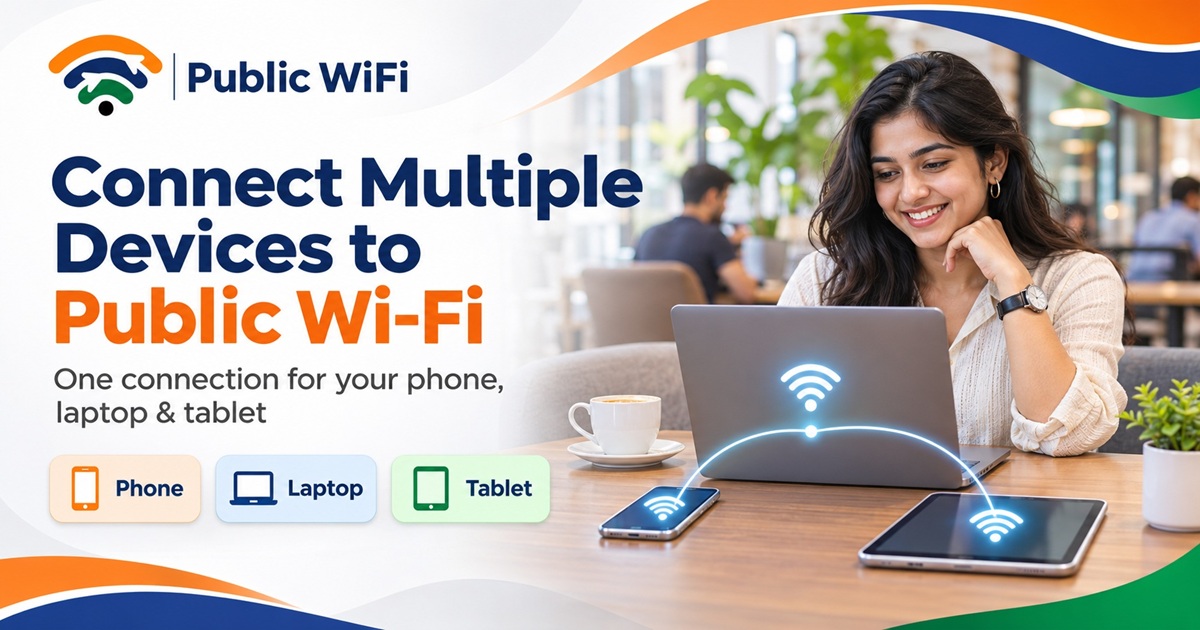
How to Connect Multiple Devices to Public Wi-Fi: A Complete Guide for Phones, Laptops & Tablets
Published: November 7, 2026
Author: Public WiFi Team
Category: Guides & Tutorials
Reading Time: 7–9 Minutes
Introduction
Imagine you're sitting in a café working on your laptop. Your smartphone needs internet access for WhatsApp messages, and your tablet is downloading important documents.
Wouldn't it be convenient to connect all three devices to the same public Wi-Fi service?
Today, most people use multiple internet-connected devices throughout the day. From smartphones and laptops to tablets and smart gadgets, staying connected across devices has become an essential part of everyday life.
However, not every public Wi-Fi service allows multiple devices to access the internet simultaneously under a single subscription.
Some providers limit connections to one device, while others offer flexible plans that support multiple active connections.
In this guide, we'll explain how to connect multiple devices to public Wi-Fi, understand simultaneous device limits, troubleshoot common problems, and choose the right Wi-Fi plan for your needs.
1. Can You Connect Multiple Devices to Public Wi-Fi?
Yes, multiple devices can connect to public Wi-Fi simultaneously, provided the hotspot supports multiple connections and the service provider's access policy allows them.
For example, you may want to connect:
- Smartphone: For WhatsApp, email, and communication.
- Laptop: For office work, online meetings, and browsing.
- Tablet: For studying, reading, and entertainment.
- Other compatible devices: For supported online applications.
However, there is an important distinction between a Wi-Fi network supporting multiple users and your subscription allowing multiple devices.
A hotspot may support dozens of connected devices, but your personal plan might permit only one or two simultaneous connections.
That's why understanding your subscription's device limit is important.
2. What Does a Simultaneous Device Connection Mean?
A simultaneous device connection refers to the number of devices that can actively access the internet using the same subscription at the same time.
Let's understand this with a simple example.
Suppose you have a Wi-Fi subscription that supports three simultaneous devices.
You could connect:
- Your Android or iPhone smartphone.
- Your Windows or Mac laptop.
- Your Android tablet or iPad.
All three devices could use the internet at the same time, provided they are connected to supported hotspots and permitted by the provider's terms.
Simultaneous Connections vs Registered Devices
These two concepts are sometimes confused.
| Feature | Registered Devices | Simultaneous Connections |
|---|---|---|
| Meaning | Devices associated with your account | Devices actively using the internet |
| Purpose | Device identification and management | Control active internet access |
| Example | Five saved devices | Three active devices |
| Restrictions | Depends on provider | Depends on subscription |
A provider may allow you to register multiple devices while limiting how many can use the internet simultaneously.
Always check the specific policy of your Wi-Fi provider.
3. Benefits of Connecting Multiple Devices to Public Wi-Fi
Using one subscription across several devices can make everyday internet access more convenient.
A. Better Productivity for Professionals
Remote workers often rely on multiple devices.
For example:
- A laptop for Microsoft Teams or Google Meet.
- A smartphone for business calls and messages.
- A tablet for reviewing presentations.
Connecting these devices simultaneously allows professionals to switch between tasks without repeatedly disconnecting one device to connect another.
B. Convenient Online Learning for Students
Students frequently use multiple devices while studying.
A student might:
- Attend an online lecture on a laptop.
- Read notes on a tablet.
- Communicate with classmates using a smartphone.
A multi-device Wi-Fi plan supports this workflow without requiring separate internet subscriptions for each device.
C. Reduced Dependence on Mobile Data
When your devices are connected to a suitable public Wi-Fi hotspot, you may use less mobile data.
This can be particularly useful when:
- Downloading large files.
- Updating applications.
- Watching educational videos.
- Synchronizing cloud documents.
- Attending online meetings.
However, using multiple devices can increase total data consumption, so you should monitor your Wi-Fi plan's data allowance.
D. Easier Connectivity While Traveling
Travelers may carry smartphones, laptops, and tablets.
A suitable multi-device subscription can help them stay connected at supported locations such as cafés, business centres, and shared workspaces.
Before traveling, always verify that the service is available at your destination.
4. How to Connect Multiple Devices to Public Wi-Fi
Connecting several devices is generally straightforward.
The exact process varies depending on the hotspot operator and the authentication system.
Step 1: Find a Supported Wi-Fi Hotspot
First, identify a hotspot operated by your chosen public Wi-Fi provider.
For Public WiFi, visit:
Explore Public WiFi Coverage in India
Search by state, district, or locality to find listed hotspots.
Before visiting, confirm the venue address, operating hours, and service availability.
Step 2: Choose a Multi-Device Wi-Fi Plan
Select a subscription that supports the number of simultaneous connections you need.
For example, if you need to connect a phone and laptop at the same time, look for a plan supporting at least two devices.
If you regularly use a phone, laptop, and tablet together, a three-device plan may be more suitable.
Step 3: Connect Your First Device
On your smartphone:
- Open Settings.
- Navigate to Wi-Fi.
- Enable Wi-Fi.
- Select the verified public Wi-Fi network.
- Open the network login portal if prompted.
- Sign in using your registered account.
- Complete any required authentication.
- Confirm that internet access is working.
Step 4: Connect Your Laptop
On a Windows laptop:
- Open Settings → Network & Internet → Wi-Fi.
- Enable Wi-Fi.
- Select the appropriate hotspot network.
- Click Connect.
- Open the authentication page if required.
- Follow the hotspot's sign-in instructions.
- Confirm that your laptop has internet access.
On macOS, open Wi-Fi from the menu bar or System Settings and select the verified network.
Important: Whether the same account can be used to authorize a second device depends on the provider's authentication and device-management policy.
Step 5: Connect Your Tablet
For Android tablets and iPads:
- Open Wi-Fi settings.
- Select the same authorized hotspot network.
- Complete the required authentication.
- Verify connectivity.
If your plan supports three simultaneous connections, your smartphone, laptop, and tablet may now be connected at the same time.
If you reach your plan's limit, disconnect an existing device or follow the provider's instructions for managing active sessions.
5. Public WiFi Plans for Multiple Devices
Public WiFi offers subscription options with different device limits, validity periods, and data allowances.
Compare Available Plans
| Feature | Basic Plan | Standard Plan | Advance Plan |
|---|---|---|---|
| Price | ₹20 | ₹100 | ₹300 |
| Validity | 1 Day | 7 Days | 30 Days |
| Maximum Speed | 15 Mbps | 20 Mbps | 30 Mbps |
| Simultaneous Devices | 1 | 2 | 3 |
| Data Allowance | 20 GB | 200 GB | Unlimited |
| Customer Support | Priority | 24/7 Phone |
Plan information is based on published details as of November 2026. Prices, availability, limits, and conditions may change.
Which Plan Should You Choose?
Basic Plan — For Single-Device Users
Suitable for someone who only needs internet access on a smartphone or laptop for a day.
Standard Plan — For Two-Device Users
Suitable for students, travelers, and professionals who want to connect a smartphone and laptop simultaneously.
Advance Plan — For Three-Device Users
Suitable for regular internet users who need simultaneous connectivity on a smartphone, laptop, and tablet.
Visit Public WiFi Plans to review current offers and subscription details.
6. Does Connecting Multiple Devices Reduce Wi-Fi Speed?
Connecting additional devices can affect internet performance, especially when several devices are actively transferring data.
This happens because connected devices share available network capacity.
Example: A 30 Mbps Internet Connection
Suppose your plan offers a maximum download speed of 30 Mbps.
You connect three devices:
- Laptop: Video conferencing.
- Smartphone: Social media and messaging.
- Tablet: Streaming educational videos.
All three devices share the available bandwidth under the applicable plan and hotspot restrictions.
However, this doesn't mean each device automatically receives exactly 10 Mbps.
Actual bandwidth allocation depends on:
- Each device's activity.
- Network congestion.
- Wireless signal quality.
- Router and access-point capabilities.
- Internet backhaul performance.
- Provider speed limits and traffic management.
Tips to Improve Performance
1. Pause Unnecessary Downloads
Avoid downloading large files while attending important meetings.
2. Disable Unneeded Background Updates
Operating system updates and cloud synchronization may consume bandwidth.
3. Reduce Video Streaming Quality
Lowering streaming resolution can reduce network usage.
4. Stay Within Good Signal Range
A stronger Wi-Fi signal may improve connection stability.
5. Disconnect Unused Devices
Remove devices that no longer require internet access.
6. Choose an Appropriate Plan
Select a subscription with adequate bandwidth and data allowance for your expected activities.
7. What Happens When You Exceed Your Device Limit?
Suppose your subscription supports two simultaneous devices, but you attempt to connect a third.
Depending on the hotspot system, you may experience:
- A message stating that the device limit has been reached.
- A request to disconnect another device.
- A login rejection.
- A request to change or upgrade your subscription.
- A device-management or session-management screen.
The exact behaviour depends on the provider.
How to Resolve Device Limit Problems
- Check your subscription's maximum connection limit.
- Identify devices that are currently connected.
- Disconnect an unused device.
- Sign out of an old session if the provider supports it.
- Reconnect the device you want to use.
- Contact customer support if a stale session prevents login.
For frequent multi-device use, consider a plan with a higher device limit.
8. Is It Safe to Connect Multiple Devices to Public Wi-Fi?
Using multiple devices on public Wi-Fi can be convenient, but every connected device should follow good security practices.
Verify the Official Network Name
Before connecting, confirm that you're using the legitimate hotspot.
Cybercriminals may create similarly named Wi-Fi networks to trick users.
Use HTTPS Websites
HTTPS encrypts data exchanged between your browser and supported websites.
Always check that sensitive websites use secure connections.
Keep Devices Updated
Install security updates on smartphones, laptops, and tablets.
Outdated operating systems and applications may contain known vulnerabilities.
Avoid Unnecessary File Sharing
Disable public network file sharing and device discovery when not required.
Protect Your Account
Use a strong, unique password and enable additional authentication options where available.
Use a VPN When Appropriate
A reputable VPN can provide an additional layer of protection for certain network traffic, although it does not eliminate phishing, malware, or other online risks.
Disconnect When Finished
If you no longer need a hotspot connection, disconnect your devices and disable automatic connection to unfamiliar networks.
Security Tip: A password-protected hotspot or successful login does not automatically make every online activity secure.
9. Common Multi-Device Wi-Fi Problems and Solutions
Here are some problems users may encounter.
| Problem | Possible Cause | Suggested Solution |
|---|---|---|
| Second device cannot log in | Plan device limit | Check subscription limits |
| Laptop connected without internet | Login incomplete | Open the hotspot authentication portal |
| Slow internet on multiple devices | Shared bandwidth or congestion | Reduce unnecessary traffic |
| Device disconnects frequently | Weak signal or interference | Move closer to the access point |
| Login session remains active | Previous session not released | Sign out or contact support |
| Wi-Fi works on phone but not tablet | Device settings or authentication | Verify settings and reconnect |
When Should You Contact Support?
Contact your Wi-Fi provider when:
- Your subscription is active but authentication repeatedly fails.
- You cannot manage an old connected-device session.
- Multiple devices experience persistent connection problems.
- Your account displays incorrect subscription information.
- The hotspot is unavailable at a location where you expected service.
Provide the hotspot location, device type, and relevant error details to help the support team diagnose the issue.
Avoid sharing passwords or sensitive authentication codes.
10. Public Wi-Fi vs Mobile Hotspot: Which Is Better for Multiple Devices?
You can also connect multiple devices through your smartphone's mobile hotspot feature.
However, public Wi-Fi and mobile hotspots work differently.
| Feature | Public Wi-Fi | Mobile Hotspot |
|---|---|---|
| Internet Source | Hotspot provider's network | Smartphone's mobile data |
| Device Connections | Depends on subscription | Depends on smartphone |
| Mobile Data Usage | Usually does not consume your phone's cellular data | Consumes mobile data |
| Battery Consumption | Normal device Wi-Fi usage | Host smartphone may use considerable power |
| Availability | Supported Wi-Fi hotspot locations | Areas with usable cellular coverage |
| Authentication | May require portal login | Usually requires hotspot password |
When Public Wi-Fi Makes Sense
Public Wi-Fi may be more suitable when:
- You have access to a trusted hotspot.
- You want to preserve mobile data.
- You regularly connect multiple devices.
- Your subscription provides sufficient bandwidth.
- You don't want to rely on your smartphone as an internet gateway.
When a Mobile Hotspot Makes Sense
A mobile hotspot may be preferable when:
- Public Wi-Fi isn't available.
- You're traveling between locations.
- You need connectivity where cellular coverage is adequate.
- You prefer to manage internet sharing directly from your phone.
Both options have advantages, and the best choice depends on your location and connectivity needs.
11. Best Practices for Managing Multiple Connected Devices
To make the most of your Wi-Fi subscription, follow these practical recommendations.
Monitor Your Internet Usage
Track data consumption across all connected devices, especially when your plan has a fixed allowance.
Prioritize Important Activities
If you're attending an online meeting, temporarily pause large downloads on other devices.
Manage Device Sessions
Disconnect unused devices so they don't occupy active connection slots.
Keep Your Devices Secure
Use strong authentication, current software, and appropriate network security settings.
Select the Right Subscription
Choose a plan based on the maximum number of devices you regularly use at the same time.
Confirm Wi-Fi Coverage
Before relying on public Wi-Fi at a new destination, verify the exact hotspot location and access requirements.
Frequently Asked Questions (FAQs)
1. Can I connect my phone and laptop to public Wi-Fi at the same time?
Yes, if your public Wi-Fi plan supports at least two simultaneous device connections and both devices meet the hotspot's authentication requirements.
2. How many devices can I connect with Public WiFi?
The currently published Public WiFi plans support one, two, or three simultaneous devices, depending on the subscription.
3. Can I use one Wi-Fi subscription on Android and iPhone?
Generally, yes, if the provider supports both devices and allows them under the same subscription. Operating systems do not usually determine the simultaneous connection limit.
4. Why does my second device fail to connect?
Possible reasons include reaching the subscription's device limit, incomplete authentication, a stale login session, or device-specific network settings.
5. Will multiple devices make my internet slower?
They can. Devices share network resources, and simultaneous high-bandwidth activities can reduce available throughput.
6. Can I connect three devices using the Public WiFi Advance Plan?
According to the published plan details, the Advance plan supports up to three simultaneous device connections, subject to applicable service conditions.
7. Do I need separate subscriptions for my phone and laptop?
Not necessarily. A subscription supporting multiple simultaneous devices may allow both devices to access the service under one account.
8. Can I use my public Wi-Fi subscription anywhere in India?
Availability depends on the provider's supported hotspots and service terms. Check the exact location before assuming your subscription can be used there.
9. How can I prevent unused devices from consuming Wi-Fi data?
Turn off Wi-Fi on unused devices, disconnect their sessions, and pause unnecessary background applications or updates.
10. Is public Wi-Fi safe for connecting multiple devices?
It can be used more safely by verifying the network, keeping devices updated, using HTTPS websites, protecting accounts, and disabling unnecessary sharing features.
Conclusion
Connecting multiple devices to public Wi-Fi can make everyday internet access more productive, flexible, and convenient.
Whether you're a student attending online classes, a professional working remotely, or a traveler carrying multiple devices, choosing a subscription with an appropriate simultaneous connection limit can simplify your digital experience.
Before selecting a plan, consider:
- The number of devices you need.
- Your expected internet usage.
- Required connection speeds.
- Subscription validity and data allowances.
- Availability of supported Wi-Fi hotspots.
- Security and authentication requirements.
With flexible daily, weekly, and monthly plans, Public WiFi offers options for users who need connectivity on one or several devices at supported locations.
Connect Your Devices with Public WiFi
Looking for convenient internet connectivity for your smartphone, laptop, and tablet?
Explore Public WiFi's subscription options and find a plan that suits your requirements.
Get Started Today:
- Explore Public WiFi Plans
- Find Wi-Fi Hotspots Near You
- Create Your Public WiFi Account
- Read More Wi-Fi Guides
Public WiFi — Stay Connected Across Your Devices.
*Disclaimer: Plan prices, connection limits, internet speeds, coverage, and features are subject to change. Check current subscription details and hotspot availability before purchasing.