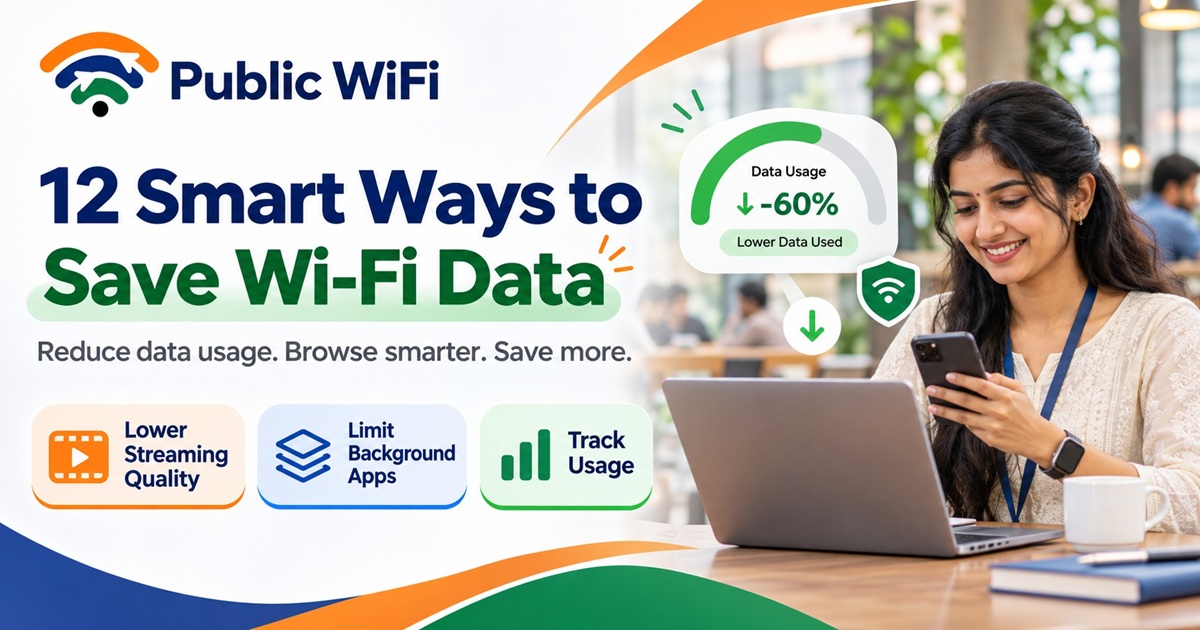
How to Reduce Wi-Fi Data Usage: 12 Smart Ways to Save Internet Data in 2026
Published: November 7, 2026
Author: Public WiFi Team
Category: Guides & Tutorials
Reading Time: 8–10 Minutes
Introduction
Have you ever wondered why your internet data runs out faster than expected, even when you're only browsing websites, watching a few videos, or attending online classes?
You're not alone.
Today, smartphones, laptops, and tablets constantly consume internet data. From automatic software updates and cloud backups to video streaming and background applications, several activities can use large amounts of data without you noticing.
This becomes particularly important when you're using a public Wi-Fi subscription with a limited data allowance.
Whether you're a student attending online classes, a professional working remotely, or a traveler relying on public Wi-Fi hotspots, managing data consumption can help you get better value from your internet subscription.
In this guide, we'll explore 12 practical ways to reduce Wi-Fi data usage, explain which applications consume the most data, and show you how to monitor internet usage across Android, iPhone, and Windows devices.
1. Why Does Wi-Fi Data Get Consumed So Quickly?
Many people believe that connecting to Wi-Fi means they no longer need to worry about data consumption.
However, Wi-Fi is simply a wireless connection to a network. The internet service behind that connection may still have a data limit.
For example, some public Wi-Fi subscriptions provide a fixed data allowance, such as 20 GB or 200 GB.
Once that allowance is exhausted, your provider may restrict access, reduce speed, or require additional data, depending on the subscription terms.
Common Reasons for High Data Consumption
Several activities contribute to excessive internet usage:
- Streaming HD and 4K videos.
- Automatic Windows, Android, and iOS updates.
- Uploading photos and videos to cloud storage.
- Downloading large applications and games.
- Video calls and online meetings.
- Social media videos that play automatically.
- Background application synchronization.
- Connecting multiple devices simultaneously.
Understanding which activities consume the most data is the first step toward managing your Wi-Fi subscription effectively.
2. How Much Data Do Common Internet Activities Use?
Before reducing data consumption, it helps to understand approximate usage for everyday activities.
| Internet Activity | Estimated Data Usage Per Hour |
|---|---|
| Web browsing | 50–150 MB |
| Music streaming | 40–150 MB |
| Social media browsing | 100–500 MB |
| Video calls | 300 MB–1.5 GB |
| Video streaming at 480p | 500–900 MB |
| HD streaming at 720p | 1–2 GB |
| Full HD streaming at 1080p | 2–4 GB |
| 4K video streaming | 7 GB or more |
| Online gaming | 40–300 MB, excluding downloads |
These are illustrative estimates. Actual data usage depends on the application, compression, video bitrate, content, device settings, and connection quality.
For example, streaming videos at 1080p for two hours per day could consume approximately 4–8 GB daily.
Over a week, this could amount to 28–56 GB.
If your subscription includes a limited data allowance, making a few small adjustments can significantly extend its usefulness.
3. Tip #1: Reduce Video Streaming Quality
Video streaming is one of the biggest contributors to internet data consumption.
Platforms such as YouTube, Netflix, and other video services automatically adjust video quality based on your internet connection.
When a faster connection is available, these services may select higher resolutions.
While this improves visual quality, it also increases data consumption.
How to Save Data While Streaming
Consider using:
- 360p: Suitable for smaller smartphone screens and basic videos.
- 480p: A reasonable balance between clarity and data usage.
- 720p: Suitable for educational videos and moderate-quality viewing.
- 1080p: Better for larger screens but typically uses more data.
- 4K: Best reserved for situations where higher resolution is necessary and data availability is sufficient.
YouTube Example
To change video quality:
- Open a YouTube video.
- Tap the settings icon.
- Select Quality.
- Open the available quality options.
- Choose a lower resolution when appropriate.
You can also configure video-quality preferences in the YouTube application.
Pro Tip: If you're watching lectures or tutorials where the content is readable at 480p or 720p, lowering the resolution can reduce data usage without significantly affecting your learning experience.
4. Tip #2: Disable Automatic Application Updates
Applications frequently receive updates containing new features, security improvements, and bug fixes.
However, automatic downloads can consume considerable bandwidth.
For example, updating several applications at once may require hundreds of megabytes or more.
On Android
- Open Google Play Store.
- Tap your profile icon.
- Open Settings.
- Navigate to Network preferences.
- Select Auto-update apps.
- Choose an appropriate update preference.
On iPhone
Open Settings and review the available App Store or Apps update preferences for your iOS version.
On Windows
Use Windows Update settings to manage download behaviour and active hours.
Important: Don't permanently disable security updates. Instead, schedule large downloads for a trusted connection with sufficient data.
5. Tip #3: Enable a Metered Connection on Windows
Windows includes a useful feature called Metered Connection.
This tells Windows that your internet connection has a limited data allowance.
When enabled, some background downloads, synchronization activities, and automatic updates may be reduced.
How to Enable Metered Connection in Windows 11
- Open Settings.
- Select Network & Internet.
- Click Wi-Fi.
- Select the connected network's properties.
- Enable Metered connection.
Benefits
- Helps reduce certain background data transfers.
- May limit automatic downloads.
- Helps conserve data on capped networks.
- Makes Windows more aware of connection restrictions.
Note: A metered connection does not block all downloads or background traffic. Some essential updates and applications may continue using data.
For laptop users connecting through public Wi-Fi, this can be one of the simplest ways to reduce unnecessary data consumption.
6. Tip #4: Turn Off Unnecessary Cloud Synchronization
Cloud services such as Google Drive, Microsoft OneDrive, Dropbox, and iCloud help keep files synchronized across devices.
However, cloud synchronization can consume significant data, particularly when uploading:
- Large videos.
- High-resolution photos.
- Application backups.
- Project folders.
- Large documents.
How to Reduce Cloud Data Usage
- Pause synchronization when using a limited-data connection.
- Upload large files only when necessary.
- Exclude unnecessary folders from synchronization.
- Schedule large backups for appropriate connections.
- Review automatic photo and video backup settings.
For example, automatically uploading 200 photos and several videos could consume gigabytes of internet data.
If your public Wi-Fi plan has a fixed allowance, consider scheduling those uploads carefully.
7. Tip #5: Disable Video Autoplay on Social Media
Social media applications often play videos automatically while you scroll.
This includes applications such as Instagram, Facebook, and other video-focused platforms.
Even if you're not actively watching every video, automatic playback can increase data consumption.
Ways to Reduce Social Media Data Usage
- Enable data-saving settings where available.
- Disable or limit video autoplay.
- Avoid unnecessary high-resolution uploads.
- Reduce background refresh activity.
- Prefer text and images when appropriate.
Application settings vary by platform and version, so look for options related to Data Usage, Media Quality, or Autoplay.
Reducing unnecessary video playback can make a noticeable difference for frequent social media users.
8. Tip #6: Monitor Internet Data Usage Regularly
You cannot manage what you don't measure.
Monitoring internet usage helps identify applications that consume unusually large amounts of data.
Check Wi-Fi Data Usage on Android
Many Android devices provide a Wi-Fi data-usage screen.
Depending on the manufacturer and Android version:
- Open Settings.
- Navigate to Network & Internet or Connections.
- Look for Data usage.
- Select Wi-Fi usage statistics if available.
- Review application-level consumption.
Some Android devices provide more detailed statistics than others.
Check Wi-Fi Data Usage on Windows 11
- Open Settings.
- Navigate to Network & Internet.
- Open Data usage.
- Select the relevant network connection.
- Review usage by application.
Windows can help identify whether browsers, cloud applications, or system services are responsible for significant consumption.
Check Data Usage on iPhone
iOS provides detailed cellular data statistics, but it does not offer the same comprehensive built-in per-app Wi-Fi usage breakdown.
For Wi-Fi-specific consumption, consider:
- Checking your internet provider's usage dashboard.
- Reviewing statistics available from the hotspot operator.
- Using compatible router or network monitoring features where available.
Pro Tip: Review your internet consumption at least once a week if your plan includes a fixed data allowance.
9. Tip #7: Avoid Downloading Large Files Unnecessarily
Large downloads can exhaust limited Wi-Fi allowances surprisingly quickly.
Examples include:
- Operating system installation files.
- High-resolution movies.
- Large software packages.
- PC games.
- Development environments.
- Video editing resources.
Some modern games require tens or even hundreds of gigabytes of storage and download data.
Practical Ways to Save Data
- Check file sizes before downloading.
- Avoid downloading duplicate files.
- Download only the software components you need.
- Use incremental updates when supported.
- Schedule large downloads for a suitable connection.
If your subscription includes 20 GB, downloading a single large game could use most or all of your allowance.
10. Tip #8: Use Data-Saving Features in Browsers
Modern browsers offer several ways to reduce unnecessary network activity.
Although many older browser data-compression features have been discontinued, users can still manage bandwidth through browser settings and browsing habits.
Recommended Practices
- Disable unnecessary extensions.
- Avoid opening too many media-heavy websites.
- Turn off unwanted video autoplay where supported.
- Close unused streaming tabs.
- Use reader modes where available.
- Avoid repeatedly downloading the same content.
Why Browser Extensions Matter
Some extensions continuously communicate with external servers.
Others load advertisements, analytics, or background content.
Reviewing and removing unnecessary extensions can improve browser performance and reduce unwanted network activity.
11. Tip #9: Limit Background Application Activity
Many applications continue using internet data even when they're not actively open.
Examples include:
- Email clients checking messages.
- Cloud storage synchronizing files.
- Messaging apps downloading media.
- Game launchers checking for updates.
- Collaboration tools maintaining connections.
- Backup software transferring files.
How to Reduce Background Usage
On smartphones:
- Review background refresh settings.
- Restrict unnecessary automatic media downloads.
- Disable background activity for nonessential applications where supported.
On Windows:
- Review startup applications.
- Pause cloud synchronization when appropriate.
- Close unused launchers and download managers.
- Check Task Manager for active applications.
Avoid blocking security software or other essential system services.
12. Tip #10: Manage Data Usage Across Multiple Devices
Many users connect a smartphone, laptop, and tablet to the same public Wi-Fi subscription.
While this is convenient, all connected devices may contribute to the total data consumption.
Example: Three Connected Devices
Consider the following usage:
| Device | Activity | Approximate Data |
|---|---|---|
| Laptop | Online meetings | 1.5 GB |
| Smartphone | Social media and messaging | 500 MB |
| Tablet | Video streaming | 2 GB |
| Total | 4 GB |
This is an illustrative example rather than a fixed usage estimate.
If you regularly use several devices, even moderate activities can consume substantial data when combined.
Best Practices
- Disconnect devices you aren't using.
- Pause unnecessary downloads.
- Avoid simultaneous high-resolution streaming.
- Monitor cumulative usage.
- Select a plan that supports the required device count and data allowance.
Public WiFi offers subscriptions with different simultaneous device limits.
13. Tip #11: Download Content for Offline Use
Offline content can be useful for students, travelers, and professionals.
Instead of repeatedly streaming the same material, download it once when permitted by the content provider.
Examples of Offline Content
- Educational PDFs.
- Course materials.
- Maps and navigation areas.
- Music playlists.
- Supported streaming downloads.
- Work documents.
- E-books and reference material.
Benefits
- Reduces repeated internet transfers.
- Makes content available without continuous connectivity.
- Helps during travel.
- Can improve productivity in areas with inconsistent networks.
Example: A student who repeatedly watches the same educational lecture may save data by using an authorized offline download rather than streaming it several times.
Remember that some platforms restrict offline access or require specific subscriptions.
14. Tip #12: Choose a Wi-Fi Plan That Matches Your Usage
Even after applying data-saving techniques, selecting the right internet subscription remains important.
For example:
- Occasional browsing generally requires less data.
- Regular online classes may need a moderate allowance.
- Frequent streaming and large downloads require substantially more data.
- Multiple connected devices can increase total consumption.
Compare Public WiFi Plans
Public WiFi provides daily, weekly, and monthly subscription options.
| Feature | Basic | Standard | Advance |
|---|---|---|---|
| Price | ₹20 | ₹100 | ₹300 |
| Validity | 1 Day | 7 Days | 30 Days |
| Internet Speed | 15 Mbps | 20 Mbps | 30 Mbps |
| Data Allowance | 20 GB | 200 GB | Unlimited |
| Simultaneous Devices | 1 | 2 | 3 |
Prices and features are based on published plan information in November 2026 and may change. Review current terms before subscribing.
Which Plan Is Suitable?
Basic Plan: Ideal for occasional users who need short-term access for browsing, communication, and essential online tasks.
Standard Plan: Suitable for students, travelers, and users who require regular connectivity over several days.
Advance Plan: Designed for frequent internet users who need longer validity, multiple device connections, and a higher data allowance.
Unlimited plans may still be subject to applicable service terms or acceptable-use policies.
Compare Public WiFi Subscription Plans
15. How to Create a Monthly Internet Data Budget
Creating a data budget can help you understand whether your current internet plan meets your needs.
Let's consider a hypothetical student who uses the internet for four hours daily.
Example Monthly Usage
| Activity | Daily Usage | 30-Day Total |
|---|---|---|
| Online classes | 1 GB | 30 GB |
| Educational videos | 500 MB | 15 GB |
| Web browsing | 200 MB | 6 GB |
| Messaging and email | 100 MB | 3 GB |
| Total | 1.8 GB | 54 GB |
For simplicity, the calculation uses 1 GB = 1,000 MB.
This student may require approximately 54 GB per month, excluding large downloads, updates, and additional devices.
A plan with a very small data allowance would not be suitable for this usage pattern.
A Simple Data Budget Formula
Estimated Monthly Data = Average Daily Data Usage × Number of Days
For example:
2 GB × 30 days = 60 GB per month
You can add a reasonable buffer to account for occasional downloads, updates, and unexpected usage.
This approach helps you compare subscription plans based on actual needs rather than advertised speeds alone.
16. Does Faster Wi-Fi Consume More Data?
One common misconception is that faster internet automatically consumes more data.
This is not necessarily true.
Internet speed and data usage measure different things.
- Mbps (Megabits per second): Measures data transfer speed.
- GB (Gigabytes): Measures the quantity of data transferred.
For example, downloading a 1 GB file generally consumes approximately 1 GB of data whether your connection is 15 Mbps or 30 Mbps, excluding transmission overhead.
A faster connection can complete the download sooner, but it does not automatically double the amount of data required.
However, faster connections may indirectly increase consumption because:
- Video platforms may automatically select higher resolutions.
- Users may stream more content.
- Downloads may become more frequent.
- Multiple devices may perform bandwidth-intensive activities simultaneously.
Therefore, managing data usage requires understanding both your internet activities and device settings.
17. How Public Wi-Fi Can Help Manage Mobile Data Expenses
A suitable public Wi-Fi subscription can help reduce dependence on cellular data when you're at a supported hotspot.
This can be useful for:
Students
Students can access online courses, download educational materials, and participate in virtual classrooms without relying entirely on their mobile data allowances.
Remote Workers
Professionals can attend meetings, access cloud applications, and synchronize work documents while connected to supported Wi-Fi services.
Travelers
Travelers can download maps, check reservations, communicate with family, and access essential online services.
Small Business Owners
Business owners can access online tools, manage digital communications, and perform routine administrative activities.
Actual savings depend on the cost of the Wi-Fi subscription, existing mobile plan, and individual usage.
18. Find Public Wi-Fi Hotspots Near You
Before purchasing a public Wi-Fi subscription, make sure a compatible hotspot is available at the location where you need internet access.
With Public WiFi, users can explore coverage information by state, district, and locality.
How to Check Coverage
- Visit the Public WiFi Coverage Directory.
- Select your state or search for your city.
- Explore your district and locality.
- Review available hotspot information.
- Confirm the specific venue, operating hours, and connectivity requirements.
Coverage varies by location. A listed city does not necessarily mean that a hotspot is available at every address.
Find Public WiFi Coverage in India
Frequently Asked Questions (FAQs)
1. How can I reduce Wi-Fi data usage on my phone?
Reduce video quality, limit automatic downloads, review background application activity, disable unnecessary media autoplay, and monitor available usage statistics.
2. Does Wi-Fi have a data limit?
Some Wi-Fi connections have fixed data allowances, while others are advertised as unlimited. The limit depends on the internet provider and subscription.
3. Does watching YouTube consume a lot of Wi-Fi data?
It can. Higher-resolution streaming generally consumes more data than lower-resolution playback.
4. How do I reduce Wi-Fi usage on Windows 11?
Enable the metered connection setting, pause unnecessary cloud synchronization, manage large downloads, and review application-level data usage.
5. Does connecting multiple devices consume more data?
Connecting more devices does not itself guarantee higher consumption. However, when several devices actively download, stream, or synchronize data, their combined usage can increase substantially.
6. Is 20 GB enough for one day of Wi-Fi?
For many everyday activities, 20 GB may be sufficient for one day. However, large downloads, high-resolution streaming, and multiple active devices can consume that allowance more quickly.
7. Is 200 GB enough for a week?
For many students and professionals, 200 GB can provide a substantial weekly allowance. Actual requirements depend on streaming quality, downloads, work activities, and connected devices.
8. Does a VPN reduce internet data usage?
Usually not. VPN encryption adds some transmission overhead and may slightly increase data consumption. A VPN is primarily a privacy and security tool rather than a data-saving feature.
9. How can I stop background applications from using Wi-Fi?
Review application background permissions, disable unnecessary synchronization, pause automatic downloads, and close unused applications.
10. Which Public WiFi plan is best for heavy internet usage?
The published Advance plan includes a 30-day validity period, an unlimited data allowance, and up to three simultaneous devices. Check the latest subscription terms and service availability before purchasing.
Conclusion
Reducing Wi-Fi data usage doesn't mean giving up your favourite online activities.
By making a few changes to your device settings and browsing habits, you can manage internet consumption more efficiently.
The most effective strategies include:
- Lowering unnecessary video streaming quality.
- Managing automatic application updates.
- Enabling metered connections on Windows.
- Controlling cloud synchronization.
- Monitoring data usage regularly.
- Limiting unnecessary background activity.
- Downloading frequently used content for offline access.
- Choosing an internet subscription that matches your actual requirements.
Whether you're studying, working remotely, traveling, or browsing the internet, managing data consumption can help you make better use of your internet subscription.
Stay Connected with Public WiFi
Looking for affordable internet connectivity with flexible subscription options?
Public WiFi offers daily, weekly, and monthly plans for different internet needs at supported hotspot locations.
Explore your options:
- Compare Public WiFi Plans
- Find Wi-Fi Hotspots Near You
- Create Your Public WiFi Account
- Read More Internet Guides
Public WiFi — Smarter Connectivity for Everyday Life.