Introduction
Public Wi-Fi makes staying connected easier than ever. Whether you're at a café, railway station, shopping mall, college, or office, connecting to a nearby Wi-Fi hotspot can help you browse the internet, attend online meetings, and save mobile data.
But did you know that your smartphone or laptop might automatically connect to a previously used Wi-Fi network without asking for your permission?
This feature, commonly known as Wi-Fi Auto-Connect or Auto-Join, is convenient, but it can also create privacy and security risks when used with public networks.
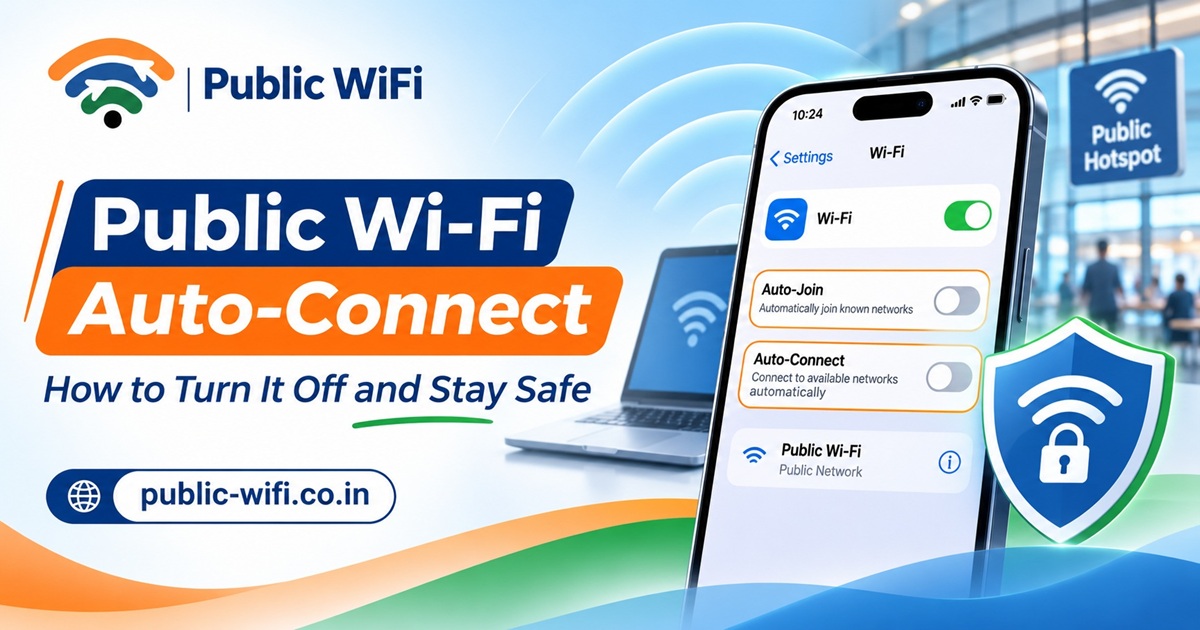
In this guide, we'll explain how automatic Wi-Fi connections work, why they can be risky, and how to disable auto-connect on Android, iPhone, Windows, and other devices.
We'll also share practical tips to help you stay connected safely when using Public WiFi.
1. What Is Wi-Fi Auto-Connect?
Wi-Fi Auto-Connect is a feature that allows your device to reconnect automatically to a wireless network you've previously joined.
For example, imagine visiting your favourite café and connecting to its Wi-Fi network.
The next time you visit, your phone may recognize that network and connect automatically without asking you to enter your password or complete the same connection steps.
This happens because your device saves information about previously connected networks.
How does it work?
When you connect to a Wi-Fi network, your device may remember:
- Network name (SSID): The name identifying the wireless network.
- Security settings: Information about the type of Wi-Fi authentication.
- Saved credentials: Passwords or authentication information, where applicable.
- Connection preferences: Whether your device should reconnect automatically.
When your device detects a matching network, it may attempt to reconnect based on your saved preferences and the operating system's connection rules.
Although this feature is useful for trusted home and office networks, automatically reconnecting to unfamiliar public hotspots can introduce unnecessary risks.
2. Is Automatically Connecting to Public Wi-Fi Safe?
Automatic Wi-Fi connections are not always dangerous. However, they can increase your exposure to potentially unsafe networks.
The level of risk depends on the network's security, your device configuration, and the websites or applications you use.
Here are some important concerns.
2.1 Fake Wi-Fi Hotspots
Cybercriminals can create wireless networks with names that resemble legitimate hotspots.
For example:
- Airport_Free_WiFi
- Cafe_Guest_WiFi
- Railway_Station_WiFi
- Free_Public_Internet
A device configured to reconnect automatically may connect to a matching network under certain conditions.
This type of attack is sometimes associated with an Evil Twin hotspot, where an attacker imitates a legitimate wireless network.
2.2 Potential Privacy Risks
When connected to an untrusted network, some information about your device or network activity may become visible to the network operator.
Encrypted HTTPS connections protect the content of communications, but they do not necessarily hide all connection metadata.
2.3 Malicious Login Pages
Some fake hotspots display login pages designed to trick users into entering personal details.
These pages might request:
- Email addresses and passwords
- Phone numbers
- Payment information
- Social media credentials
- Unnecessary personal information
Always verify that you're connecting to the official hotspot before entering sensitive information.
2.4 Unwanted Background Data Usage
Your device may start background activities after connecting to Wi-Fi, including:
- Application updates
- Cloud synchronization
- Photo and video backups
- Software downloads
- Automatic file transfers
These activities can consume substantial data if your Wi-Fi subscription has a limited allowance.
Important: Disabling automatic connections does not make an unsafe network secure by itself. It simply gives you greater control over which networks your device joins.
3. How to Disable Wi-Fi Auto-Connect on Android
Most Android smartphones allow you to control automatic connections for individual Wi-Fi networks.
The exact steps may vary depending on your phone manufacturer and Android version.
Step-by-Step Instructions
- Open Settings on your Android smartphone.
- Select Wi-Fi, Network & Internet, or Connections.
- Tap the Wi-Fi network you're currently connected to.
- Open Network Details or the network settings.
- Find the Auto-connect, Connect automatically, or similar option.
- Turn the option Off.
Your device should no longer reconnect automatically to that saved network when the setting is supported.
How to Forget a Public Wi-Fi Network on Android
If you no longer need a particular network:
- Open Settings > Wi-Fi.
- Find the saved network.
- Tap its name or settings icon.
- Select Forget or Remove Network.
- Confirm your selection.
Forgetting a network removes its saved connection details from your device.
Tip: Keep automatic connections enabled for trusted networks, such as your home Wi-Fi, while disabling them for public hotspots you rarely use.
4. How to Turn Off Auto-Join Wi-Fi on iPhone
Apple iPhones provide an Auto-Join option for individual Wi-Fi networks.
Step-by-Step Instructions
- Open the Settings application.
- Tap Wi-Fi.
- Locate the network you want to manage.
- Tap the information icon (i) next to the network name.
- Find the Auto-Join option.
- Turn Auto-Join Off.
Your iPhone will no longer automatically join that saved network through the normal Auto-Join behaviour.
How to Forget a Wi-Fi Network on iPhone
- Go to Settings > Wi-Fi.
- Tap the information icon next to the network.
- Select Forget This Network.
- Confirm your choice.
You can also manage previously joined networks through the editing options available in supported iOS versions.
Additional iPhone Privacy Tips
Consider enabling these features where available:
- Private Wi-Fi Address: Helps reduce device tracking across Wi-Fi networks.
- Limit IP Address Tracking: Provides additional privacy protections in supported configurations.
- Automatic software updates: Helps keep security protections current.
These settings offer different protections and should not be considered substitutes for using a trustworthy network.
5. How to Disable Automatic Wi-Fi Connections on Windows 11
Windows laptops also save wireless network information and can reconnect automatically.
This is especially important if you frequently work from cafés, coworking spaces, airports, or other public locations.
Method 1: Change Connection Settings
- Open Settings.
- Navigate to Network & Internet > Wi-Fi.
- Select Manage known networks.
- Choose the saved Wi-Fi network.
- Disable Connect automatically when in range, if available for that network.
Depending on the Windows version and connection state, the option may instead appear in the network's connection properties.
Method 2: Forget the Network
- Open Settings > Network & Internet > Wi-Fi.
- Select Manage known networks.
- Find the public hotspot.
- Click Forget.
Windows will remove the saved network profile.
Additional Windows Security Recommendations
When connecting to public Wi-Fi:
- Use the Public network profile.
- Keep Microsoft Defender Firewall enabled.
- Disable unnecessary file and printer sharing.
- Install Windows security updates.
- Avoid accessing unknown network-shared folders.
These precautions can reduce the risk of exposing your laptop to other devices on an untrusted network.
6. Should You Completely Turn Off Wi-Fi When Not Using It?
Not necessarily.
Keeping Wi-Fi enabled can be useful for discovering available networks and using trusted connections.
However, if you're travelling or moving through unfamiliar public places, you can reduce unnecessary connection attempts by managing saved networks and automatic connection settings.
Here is a simple comparison:
| Setting | Convenience | Security consideration |
|---|---|---|
| Auto-connect to trusted home Wi-Fi | High | Generally appropriate with secure configuration |
| Auto-connect to known office Wi-Fi | High | Depends on company security policies |
| Auto-connect to public hotspots | High | May increase exposure to untrusted networks |
| Manual connection to public hotspots | Moderate | Gives more control over network selection |
| Forget unused public networks | Moderate | Reduces unwanted reconnection attempts |
Our recommendation: Use automatic Wi-Fi connections for networks you know and trust. For unfamiliar public hotspots, prefer connecting manually after verifying the network.
7. How to Connect Safely to Public WiFi Hotspots
Disabling auto-connect is only one part of staying safe online.
When using a public internet service, follow these practical steps.
Step 1: Find an Available Hotspot
Visit the Public WiFi Coverage page to explore listed hotspot locations.
You can search for available service areas and check whether the intended location is supported.
Step 2: Verify the Official Wi-Fi Network
Once you reach the location, confirm the correct network name with the venue or official service instructions.
Avoid connecting to similarly named networks without verification.
Step 3: Connect Manually
Open your device's Wi-Fi settings and select the verified network.
Depending on the hotspot, you may need to open a browser-based login portal to authenticate.
Step 4: Sign In Through the Official Portal
Follow the hotspot's official login instructions.
If you need an account, visit the Public WiFi Sign Up page.
Never enter your password or payment details into suspicious websites.
Step 5: Choose a Suitable Wi-Fi Plan
Different internet users have different requirements.
For example:
- Students may need connectivity for online classes and study materials.
- Professionals may require internet access for meetings and cloud applications.
- Travellers may prefer short-duration internet access.
- Frequent users may benefit from longer-validity subscriptions.
Explore available options on the Public WiFi Plans page.
Step 6: Disconnect When Finished
After completing your session:
- Disconnect from the hotspot.
- Disable automatic reconnection if appropriate.
- Forget the network if you do not expect to use it again.
- Sign out of sensitive accounts when using shared devices.
Following these steps helps you maintain control over your internet connections.
8. Public Wi-Fi Security Best Practices
Even when you manually connect to a hotspot, following good security habits is essential.
Use HTTPS Websites
Look for secure HTTPS connections when accessing websites.
HTTPS encrypts information exchanged between your browser and the website, helping protect against interception and modification.
Keep Your Device Updated
Install operating system, browser, and application security updates.
Updates often address known vulnerabilities.
Use Multi-Factor Authentication
Enable multi-factor authentication for important accounts, including email, banking, and cloud services.
This adds protection if an account password becomes compromised.
Consider Using a Trusted VPN
A reputable VPN can encrypt traffic between your device and the VPN server, providing additional protection on untrusted networks.
However, VPNs do not eliminate all threats, such as phishing websites or compromised devices.
Avoid Sharing Sensitive Files
Disable unnecessary file sharing while connected to public Wi-Fi.
Check Network Names Carefully
Do not assume that a network is legitimate simply because its name contains words such as "Official", "Secure", or "Free".
Monitor Your Data Usage
If your subscription includes a data allowance, monitor background downloads and automatic updates.
This helps prevent unexpected data consumption.
9. Common Mistakes to Avoid on Public Wi-Fi
Many security problems can be prevented by avoiding a few common habits.
Mistake 1: Connecting to any network labelled "Free Wi-Fi"
A familiar-looking name does not prove that a hotspot is legitimate.
Mistake 2: Keeping every public network saved forever
Old saved connections may increase unwanted reconnection attempts.
Mistake 3: Ignoring browser security warnings
Do not bypass certificate warnings or install unexpected certificates to access a hotspot.
Mistake 4: Entering personal information into suspicious login pages
Only provide information required by a verified service.
Mistake 5: Assuming every public network is encrypted
Different hotspots use different security configurations. Check whether your connection is protected and use encrypted applications.
Mistake 6: Forgetting to disconnect after use
Disconnecting when finished helps prevent unintended future connections.
10. Benefits of Managing Your Wi-Fi Connections
Taking control of automatic Wi-Fi connections offers several advantages.
Better Privacy
You can reduce unnecessary connections to unknown or potentially untrustworthy networks.
Greater Network Control
Your device connects to the hotspots you choose rather than automatically joining every remembered network.
Improved Data Management
You can decide when to use Wi-Fi and better control background application activity.
More Predictable Connectivity
Manual selection can help you avoid reconnecting to a slow or unreliable hotspot when a better alternative is available.
Safer Online Habits
Checking network names and connection settings encourages more security-conscious internet use.
11. Frequently Asked Questions (FAQs)
Q1. Is Wi-Fi Auto-Connect dangerous?
Not inherently. Auto-connect is generally convenient for trusted networks. However, automatic reconnection to public or unfamiliar networks can create additional risks.
Q2. Should I disable Auto-Join on my iPhone?
Consider disabling Auto-Join for public hotspots you don't regularly use. You can keep it enabled for trusted home and office networks.
Q3. Does disabling Wi-Fi Auto-Connect save battery?
Not necessarily. The impact depends on your device and its wireless scanning behaviour. The main benefit is greater control over network connections.
Q4. Can hackers access my phone through public Wi-Fi?
An unsafe network can expose users to certain attacks, but simply connecting does not automatically give someone access to your phone. Updated software, encrypted connections, and safe browsing habits help reduce risk.
Q5. What is the difference between disconnecting and forgetting a Wi-Fi network?
Disconnecting ends your current connection but generally keeps the network information saved.
Forgetting removes the saved network profile, meaning you'll usually need to reconnect manually.
Q6. Can I use Public WiFi on multiple devices?
Yes. Public WiFi supports multiple simultaneous device connections depending on your subscription plan. Check the supported device limit before subscribing.
Q7. Is Public WiFi available everywhere in India?
Availability varies by location. Visit the Coverage Page to explore listed service locations before purchasing a plan.
Q8. Can I still connect manually after disabling auto-connect?
Yes. Disabling automatic connection does not prevent you from selecting the network and connecting manually when you need internet access.
Conclusion: Stay Connected, Stay in Control
Public Wi-Fi offers a convenient way to access the internet while studying, working, shopping, or travelling.
However, convenience should not come at the cost of privacy and security.
By managing automatic Wi-Fi connections, removing unused networks, verifying official hotspots, and following basic cybersecurity practices, you can make better decisions about when and where your devices connect.
Remember:
- Disable auto-connect for unfamiliar public networks.
- Keep automatic connections for trusted networks when appropriate.
- Verify the official Wi-Fi network before connecting.
- Use HTTPS and updated software.
- Disconnect from hotspots when you no longer need them.
Looking for convenient internet connectivity in India?
Explore Public WiFi to discover available hotspots, compare flexible internet plans, and find a connection that suits your needs.
Get Started with Public WiFi
- Find Wi-Fi Coverage Near You
- Compare Internet Plans
- Create Your Public WiFi Account
- Explore More Wi-Fi Guides
Stay connected. Browse smarter. Stay safer with Public WiFi.