Introduction
Public Wi-Fi has become an important part of everyday internet connectivity. Whether you're visiting a café, shopping mall, railway station, airport, hotel, or coworking space, connecting to a Wi-Fi hotspot is often as simple as selecting a network and signing in.
But have you ever noticed that some Wi-Fi networks automatically open a login page before allowing you to browse the internet?
That page is called a Wi-Fi captive portal.
Captive portals help public Wi-Fi providers manage network access, authenticate users, offer internet plans, and maintain a more organized connectivity experience.
In this guide, we'll explain what a captive portal is, how it works, why public Wi-Fi networks use it, and how to resolve common login problems.
What Is a Wi-Fi Captive Portal?
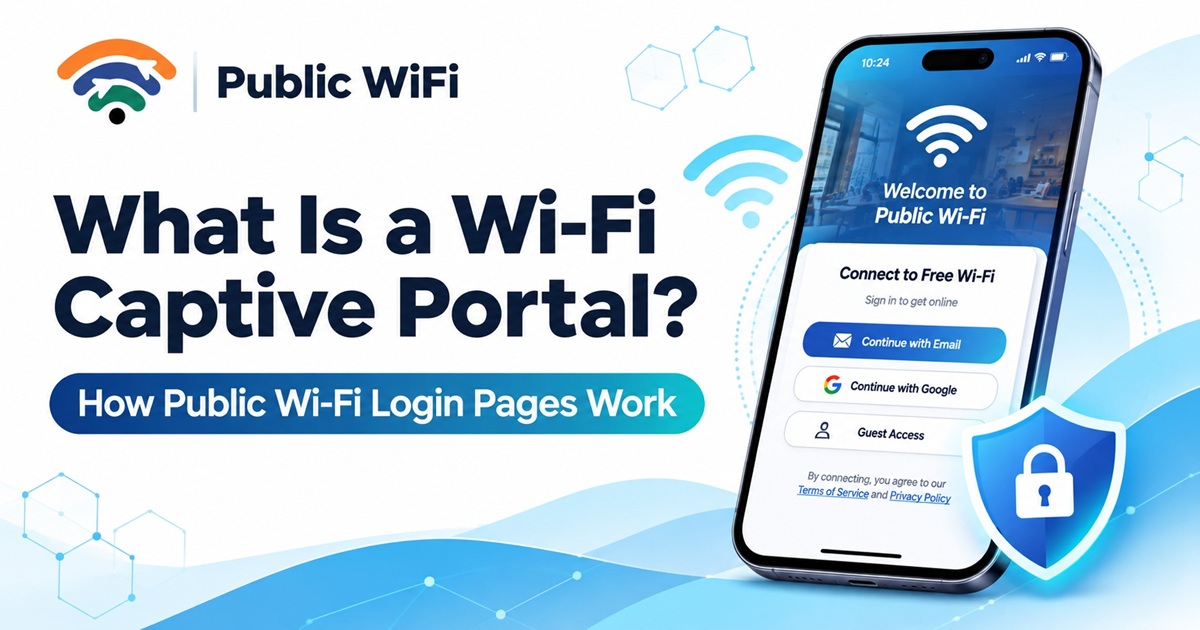
A Wi-Fi captive portal is a web-based authentication page that appears when you connect to certain public or guest Wi-Fi networks.
Instead of immediately providing unrestricted internet access, the network redirects you to a page where you may need to:
- Enter your mobile number.
- Verify your identity using an OTP.
- Sign in with your registered account.
- Accept the network's terms and conditions.
- Purchase or activate an internet plan.
- Enter a voucher or access code.
Once you successfully complete the required steps, the network authorizes your device to access the internet according to the applicable service rules.
Captive portals are commonly used by public hotspot operators, hotels, educational institutions, businesses, and commercial Wi-Fi service providers.
How Does a Wi-Fi Captive Portal Work?
A captive portal acts as a gateway between your connected device and the internet.
Here's how the process typically works.
Step 1: Connect to the Wi-Fi Network
Open the Wi-Fi settings on your smartphone, laptop, or tablet and select the available hotspot.
Your device establishes a wireless connection with the access point.
However, being connected to Wi-Fi doesn't necessarily mean you already have internet access.
Step 2: The Network Detects Your Device
Once connected, the network identifies your device's connection and determines whether it has permission to access the internet.
If your device hasn't been authenticated, normal internet traffic may be restricted.
Step 3: The Captive Portal Appears
Your operating system may detect that the network requires authentication and automatically display a login window.
Depending on the network configuration, you might see a page requesting your login details or offering available internet plans.
Step 4: Complete Authentication
Follow the instructions provided by the hotspot operator.
Depending on the provider, this could involve mobile OTP verification, account login, voucher validation, or payment confirmation.
Step 5: Internet Access Is Activated
After successful authentication, the network grants access according to your account or subscription permissions.
You can then browse websites, use applications, attend online meetings, and access other internet services.
Important: Captive portals are primarily access-control systems. A successful login does not automatically mean that every website or application you use is encrypted or secure.
Why Do Public Wi-Fi Networks Use Captive Portals?
Captive portals provide several advantages for hotspot operators and internet users.
1. User Authentication
Authentication helps the network operator determine which users or devices are authorized to connect.
Methods may include login credentials, OTP verification, or access vouchers.
The available authentication method depends on the provider and applicable requirements.
2. Internet Plan Management
Some public Wi-Fi services provide multiple subscription options.
A captive portal can allow users to review and activate plans based on factors such as:
- Connection speed
- Internet access duration
- Data allowances
- Supported device limits
- Subscription validity
This makes it easier to manage different types of internet usage.
3. Bandwidth Management
Public hotspots often serve multiple users simultaneously.
Network operators can combine captive portals with bandwidth-control systems to allocate connection speeds and enforce plan limits.
This helps manage shared network resources, although it doesn't guarantee a particular speed for every user.
4. Acceptable Usage Policies
A captive portal can display terms of service and usage policies before granting network access.
This informs users about relevant network rules and service conditions.
5. Convenient Guest Access
Businesses can provide internet access to customers or visitors without sharing their primary business Wi-Fi password.
When combined with proper network segmentation, guest Wi-Fi can also help separate visitors from internal business systems.
Captive Portal vs Traditional Wi-Fi Password
Both approaches control access to Wi-Fi, but they operate differently.
| Feature | Captive Portal | Wi-Fi Password |
|---|---|---|
| Authentication | Through a web login or access page | Through a Wi-Fi password |
| User accounts | Can support individual accounts | Usually uses a shared password |
| Subscription management | Can support plans and vouchers | Not normally included |
| Access duration | Can be configured per session or user | Requires additional management |
| Guest onboarding | Web-based instructions | Password entry |
| Security | Depends on wireless encryption and network setup | Depends on encryption and password configuration |
It's important to understand that captive portal authentication and Wi-Fi encryption are different things.
A captive portal can operate on an open or encrypted wireless network. Where supported, secure Wi-Fi encryption such as WPA2 or WPA3 provides additional protection for wireless communication.
How to Connect to a Public Wi-Fi Captive Portal
Connecting usually takes only a few steps.
On Android
- Open Settings > Wi-Fi or Network & Internet > Internet, depending on your device.
- Select the official public Wi-Fi network.
- Tap the sign-in notification if it appears.
- Complete the login or verification process.
- Wait for the connection to be authorized.
- Start using the internet.
On iPhone
- Open Settings > Wi-Fi.
- Select the public Wi-Fi network.
- Wait for the captive portal page to appear.
- Follow the instructions on the login page.
- Complete authentication.
- Confirm that your internet connection is working.
On Windows
- Click the Wi-Fi icon on the taskbar.
- Select the official hotspot network.
- Click Connect.
- Open the network sign-in notification or browser if necessary.
- Complete the required authentication.
- Verify that internet access is available.
The exact screens may vary based on your device, operating system, and hotspot configuration.
Why Is My Wi-Fi Captive Portal Not Opening?
Sometimes your device connects successfully to a hotspot, but the login page doesn't appear.
This is a common issue with public and guest Wi-Fi networks.
Here are several possible solutions.
1. Open a Non-HTTPS Website
Try opening:
http://neverssl.com
This unencrypted HTTP page may help trigger a captive portal redirect on networks that use HTTP interception.
Avoid entering personal information on unencrypted pages. Complete authentication only through the provider's verified login page.
2. Disconnect and Reconnect
Turn Wi-Fi off, wait a few seconds, and reconnect to the official hotspot.
This may trigger the operating system's captive portal detection process again.
3. Disable VPN Temporarily
Some VPN configurations can interfere with captive portal detection before authentication is complete.
If necessary, temporarily disconnect your VPN, complete the hotspot login, and then reconnect the VPN.
4. Check Private DNS Settings
Custom DNS or encrypted DNS settings may occasionally interfere with certain captive portal configurations.
Temporarily using the device's automatic DNS settings may help diagnose the issue.
Restore your preferred secure settings afterward.
5. Forget the Network
Remove the saved Wi-Fi network from your device and connect again.
This can resolve some problems caused by outdated network settings.
6. Contact the Hotspot Provider
If the portal still doesn't load, the issue could be related to network configuration, account authorization, or the hotspot itself.
Contact the official support team for assistance.
Is a Wi-Fi Captive Portal Safe?
A captive portal can provide an organized authentication experience, but security depends on how the hotspot and its infrastructure are configured.
A login page alone does not guarantee that a network is trustworthy.
For safer public Wi-Fi usage, follow these practices:
- Verify the network name: Confirm the official SSID with the hotspot operator.
- Check the login page: Avoid suspicious websites and unexpected requests for sensitive information.
- Use HTTPS websites: Look for properly secured connections before submitting personal details.
- Never share OTPs: Enter verification codes only into the legitimate authentication process.
- Keep devices updated: Install operating system and browser security updates.
- Disable unnecessary sharing: Turn off file sharing and network discovery where appropriate.
- Use a trusted VPN when needed: A VPN can provide an additional layer of protection, especially on unfamiliar networks.
- Forget unused networks: Remove public hotspots you no longer need to prevent unintended reconnections.
Be especially cautious of fake captive portals that imitate legitimate login pages to collect passwords, OTPs, or payment information.
Benefits of Captive Portals for Businesses
Captive portals aren't just useful for users. They can also help businesses deliver a more structured guest connectivity experience.
For example, a café may want customers to access Wi-Fi through a simple login page instead of repeatedly requesting a shared password.
Similarly, hotels, offices, educational institutions, and coworking spaces can use captive portals to manage guest connectivity.
Potential benefits include:
Better access management: Provide authorized internet access without exposing the main business network credentials.
Flexible usage policies: Configure session limits, bandwidth policies, or access periods.
Simplified onboarding: Present clear instructions for connecting to the network.
Subscription support: Offer paid access options where applicable.
Network visibility: Help administrators monitor aggregate usage and authorized sessions, subject to applicable privacy requirements.
For businesses planning to offer public internet services, captive portals can form an important part of a professionally managed hotspot solution.
How Public WiFi Helps You Stay Connected
Public WiFi is designed to make wireless internet access more convenient and accessible across supported locations in India.
Whether you're a student, working professional, traveler, or everyday internet user, Public WiFi helps you explore available connectivity options based on your needs.
With Public WiFi, you can:
- Explore hotspot coverage: Search supported locations through the Public WiFi Coverage page.
- Compare internet plans: Review available subscription options, validity, and applicable benefits.
- Manage your account: Access your account through the Public WiFi Login page.
- Connect multiple devices: Choose plans that support your required number of devices.
- Get assistance: Contact the support team for connectivity or account-related questions.
To get started, explore the available hotspot coverage, choose a suitable plan, and follow the authentication instructions provided at your selected location.
Actual hotspot availability, connection procedures, speeds, and plan features may vary by location.
Frequently Asked Questions
1. What is a captive portal in Wi-Fi?
A captive portal is a web-based page that requires users to complete authentication, accept terms, or activate access before using the internet through a Wi-Fi network.
2. Why does public Wi-Fi require a login page?
Public Wi-Fi providers may use login pages to authenticate users, manage subscriptions, enforce access policies, and control network usage.
3. Can I use public Wi-Fi without a captive portal?
Yes. Some public Wi-Fi networks provide access without a web-based login page. Others require a password, account login, voucher, or additional authentication.
4. Why does my device show connected but no internet?
Your device may be connected to the wireless access point but not yet authenticated. Other possible causes include network outages, DNS problems, and signal issues.
5. Is a captive portal the same as a VPN?
No. A captive portal manages network access, while a VPN creates an encrypted connection between your device and a VPN server.
6. Does a captive portal protect my personal data?
Not necessarily. A captive portal controls access but does not automatically encrypt all traffic. Use trusted networks and encrypted connections for better protection.
7. Can I connect multiple devices through a captive portal?
That depends on the provider's policies and your subscription plan. Some networks support multiple simultaneous devices, while others enforce individual device limits.
Conclusion
Wi-Fi captive portals play an important role in modern public internet services.
They provide a convenient way for hotspot operators to authenticate users, manage internet plans, control access, and offer structured guest connectivity.
For users, understanding how captive portals work makes connecting to public Wi-Fi easier and helps resolve common login problems.
Whether you're accessing Wi-Fi at a café, hotel, office, or public hotspot, always verify the network and follow safe browsing practices.
Ready to explore convenient internet connectivity?
Visit Public WiFi to discover available internet plans and check hotspot coverage near your preferred location.
Stay connected. Stay informed. Stay secure.
Disclaimer: This article provides general educational information about captive portal technology and public Wi-Fi connectivity. Authentication methods, security configurations, network availability, and subscription features vary by service provider and location.