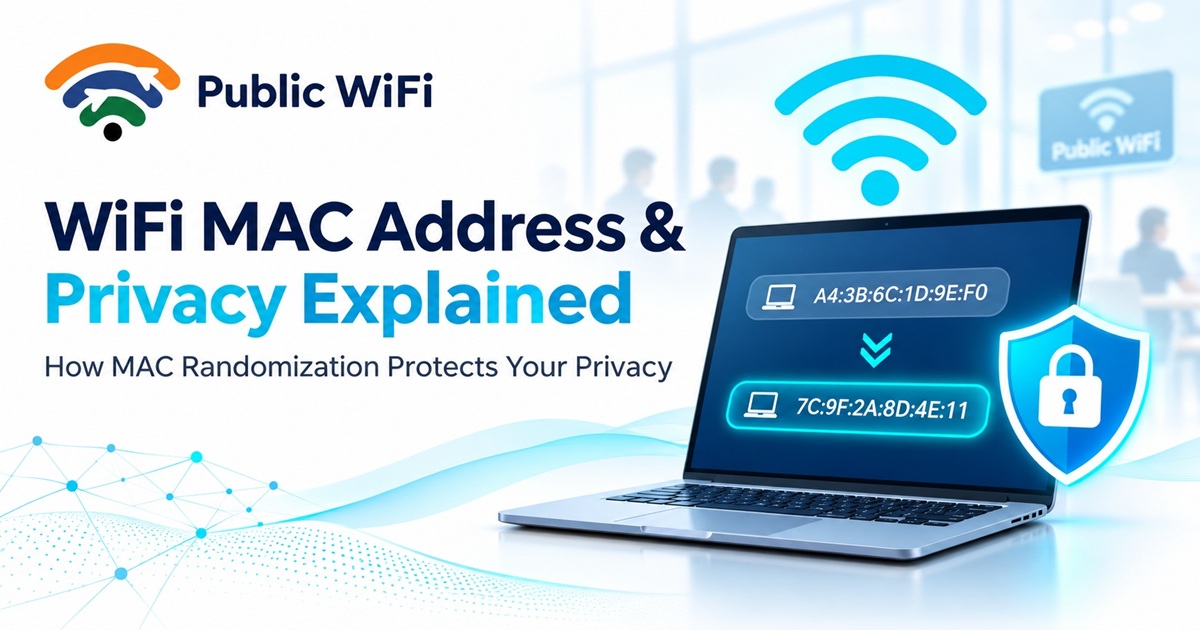
What Is a WiFi MAC Address? How MAC Randomization Protects Your Privacy
Every time you connect your smartphone, laptop, or tablet to a Wi-Fi network, your device uses a unique networking identifier called a MAC address.
Most people have never heard of a MAC address, yet it plays an important role in how wireless networks recognize devices and manage connections.
When you connect to public Wi-Fi at a café, railway station, shopping mall, or office, your device's MAC address may be visible to the local network.
This raises an important question: Can public Wi-Fi networks identify or track your device using its MAC address?
Modern smartphones and computers include privacy features such as MAC address randomization, also known as Private Wi-Fi Address on Apple devices.
In this guide, we'll explain what MAC addresses are, why they matter, how MAC randomization works, and how to protect your privacy when using public Wi-Fi.
1. What Is a WiFi MAC Address?
A MAC address (Media Access Control address) is an identifier assigned to a network interface, such as the Wi-Fi adapter inside your smartphone or laptop.
It helps devices communicate with each other within a local network.
A traditional MAC address is usually represented as six pairs of hexadecimal characters.
For example:
A4:B2:C3:12:34:56
A MAC address is different from an IP address.
While an IP address identifies a device's network connection for communication across IP networks, a MAC address is used for communication at the local network level.
MAC Address vs IP Address
| Feature | MAC Address | IP Address |
|---|---|---|
| Purpose | Identifies a network interface on a local network | Identifies a network connection for IP communication |
| Example | A4:B2:C3:12:34:56 | 192.168.1.10 |
| Assigned by | Manufacturer or operating system | Network administrator, DHCP server, or device configuration |
| Can change? | Yes, through randomization or configuration | Yes, depending on network configuration |
| Used by | Local networking equipment | Routers and IP-based networks |
| Privacy concern | Can help identify or correlate device connections | Can reveal network information and approximate location |
Important: A MAC address does not directly reveal your name, phone number, or exact GPS location.
However, it can sometimes be used to recognize a device across network sessions.
2. Why Do Public WiFi Networks Use MAC Addresses?
Public Wi-Fi networks use MAC addresses for normal wireless communication and may also use them for network management.
For example, hotspot operators can use MAC addresses to:
- Identify connected network interfaces.
- Manage device connections.
- Apply network access policies.
- Monitor connection activity.
- Troubleshoot network problems.
- Support device-specific authentication or session management.
When you connect to a public Wi-Fi hotspot, the access point can see the MAC address presented by your device.
On modern devices, this may be a randomized address rather than your hardware's permanent MAC address.
Example: Connecting to a Public WiFi Hotspot
Imagine you're visiting a café that provides wireless internet.
- You open Wi-Fi settings on your smartphone.
- Your phone discovers nearby wireless networks.
- You select the café's official Wi-Fi network.
- Your device connects using its current Wi-Fi MAC address.
- The network assigns an IP address.
- You complete any required login or authentication.
- You begin using the internet.
The MAC address helps the local network communicate with your device, while the login system may separately identify your account or session.
3. Can Public WiFi Track Your Device Using a MAC Address?
Potentially, yes.
If a device repeatedly exposes the same MAC address, compatible network infrastructure may be able to recognize that identifier across connections.
For example, a network operator might observe that a particular device connected on Monday and returned on Wednesday.
However, MAC addresses alone generally do not identify the person carrying the device.
Additional information, such as login records, account details, network observations, or other identifiers, would be needed to associate activity with an individual.
Why This Matters
Without appropriate privacy protections, persistent device identifiers may contribute to:
- Recognizing returning devices.
- Correlating connection sessions.
- Building usage statistics linked to device identifiers.
- Tracking device presence across participating network locations.
This is one reason modern operating systems introduced MAC randomization.
4. What Is MAC Address Randomization?
MAC address randomization is a privacy feature that allows your device to use an alternative MAC address instead of consistently exposing its hardware MAC address.
Depending on your operating system and settings, your device may use a different address for different Wi-Fi networks or periodically rotate the address.
How It Works
Consider a smartphone with the following example hardware MAC address:
A4:B2:C3:12:34:56
When connecting to different Wi-Fi networks, it might use:
| Wi-Fi Network | MAC Address Presented |
|---|---|
| Home Wi-Fi | 6A:21:8B:34:56:78 |
| Office Wi-Fi | 72:91:AC:45:67:89 |
| Café Wi-Fi | 3E:45:9D:12:34:AB |
| Railway Station Wi-Fi | 5A:77:BC:67:89:10 |
These are illustrative addresses. Actual behavior depends on the device and operating system.
Instead of exposing the same hardware identifier everywhere, the device presents alternative addresses.
This helps reduce the ability of separate networks to correlate connections using a single permanent MAC address.
Does Randomization Make You Anonymous?
No.
MAC randomization improves privacy, but it does not provide complete anonymity.
A network may still recognize you through:
- Your hotspot login account.
- Cookies and browser sessions.
- Device or browser fingerprinting.
- Other networking identifiers.
- Information you voluntarily provide.
MAC randomization is one privacy layer, not a complete tracking prevention solution.
5. How to Enable Randomized MAC Address on Android
Most modern Android phones support randomized MAC addresses.
However, menu names and available options can differ between manufacturers and Android versions.
Steps for Android
- Open Settings.
- Select Wi-Fi or Network & Internet.
- Tap the Wi-Fi network you want to configure.
- Open Privacy, Advanced, or the network details menu.
- Find the MAC address type option.
- Select Randomized MAC if available.
Some Android devices enable MAC randomization automatically.
How to Check Your Current MAC Address
Open your connected network's details and look for its MAC address information.
Some phones display both the randomized address and the device's hardware MAC address.
Tip: Keeping randomized MAC enabled is generally preferable when connecting to unfamiliar public Wi-Fi networks.
6. How to Enable Private Wi-Fi Address on iPhone
Apple includes a feature called Private Wi-Fi Address.
This feature helps reduce tracking by limiting the use of a single persistent hardware MAC address across different Wi-Fi networks.
Steps for iPhone
- Open Settings.
- Tap Wi-Fi.
- Select the information icon next to a Wi-Fi network.
- Find Private Wi-Fi Address.
- Choose an available privacy option.
On supported recent versions of iOS, you may see:
| Setting | What It Does |
|---|---|
| Off | Uses the device's hardware Wi-Fi MAC address |
| Fixed | Uses a private address that generally remains consistent for that network |
| Rotating | Changes the private address periodically |
Available settings depend on the iOS version and network configuration.
Which Setting Should You Choose?
For public or unfamiliar networks, using a private address is generally recommended.
Where the rotating option is available and compatible with the hotspot, it can provide additional protection against long-term MAC-based correlation.
For trusted home networks, a fixed private address often provides a convenient balance between privacy and compatibility.
7. How to Enable Random Hardware Addresses on Windows
Windows also supports randomized hardware addresses on compatible Wi-Fi adapters.
Steps for Windows 11
- Open Settings.
- Select Network & Internet.
- Open Wi-Fi.
- Find Random hardware addresses, if available.
- Enable the feature or configure it for an individual saved network.
Some devices support randomization only during network discovery, while others provide network-specific randomization settings.
The available controls depend on your Wi-Fi adapter, drivers, and Windows configuration.
Note: If you don't see this setting, your device or driver may not support the feature.
8. Does MAC Randomization Affect Public WiFi Login?
In some cases, yes.
Public Wi-Fi networks may use a combination of accounts, authentication sessions, cookies, IP addresses, and device identifiers to manage access.
If a hotspot associates an active session with a particular MAC address, changing that address can cause the network to treat your device as a new connection.
You may need to log in again.
Common Situations
| Situation | Possible Result |
|---|---|
| MAC address remains unchanged | Existing device association may continue |
| MAC address changes | Hotspot may request authentication again |
| Device-based access control is enabled | New MAC may require authorization |
| Network uses account-based login | You may need to sign in again |
| Device limit is enforced using MAC addresses | A changed address may be counted as a different device |
The exact behavior depends on the hotspot's authentication system.
What Should You Do?
If a legitimate hotspot repeatedly asks you to log in after an address change:
- Verify you're connecting to the official network.
- Check whether your device recently changed its private MAC address.
- Reconnect and complete the normal authentication process.
- Contact the hotspot support team if the issue continues.
Avoid disabling MAC randomization merely to bypass a login problem without understanding the privacy implications.
9. MAC Randomization vs VPN: What's the Difference?
MAC randomization and VPNs protect different aspects of your privacy.
| Feature | MAC Randomization | VPN |
|---|---|---|
| Changes the MAC address presented to Wi-Fi | Yes | No |
| Helps prevent MAC-based tracking | Yes | Not directly |
| Encrypts internet traffic through a VPN tunnel | No | Yes |
| Hides your original public IP from destination websites | No | Usually, for traffic routed through the VPN |
| Requires separate software | Usually no | Often yes |
| Helps protect privacy on public Wi-Fi | Yes | Yes |
Should You Use Both?
They can complement each other.
MAC randomization reduces reliance on a persistent hardware identifier, while a trustworthy VPN can protect traffic between your device and the VPN server.
However, neither technology guarantees anonymity or prevents every type of online tracking.
For stronger protection, also use HTTPS websites, updated software, and secure account authentication.
10. Best Privacy Practices When Using Public WiFi
Besides enabling MAC randomization, several practical habits can improve your safety on public wireless networks.
1. Verify the Official Network Name
Always confirm the correct Wi-Fi network name with the business or hotspot provider.
Attackers can create misleading networks with names similar to legitimate hotspots.
2. Keep MAC Randomization Enabled
Use private or randomized Wi-Fi addresses whenever practical, especially on unfamiliar networks.
3. Use HTTPS Websites
Look for websites that use HTTPS to encrypt communication between your browser and the website.
Remember that HTTPS does not make a fraudulent website trustworthy.
4. Avoid Unnecessary File Sharing
Turn off unnecessary file sharing and network discovery features when using unfamiliar networks.
5. Keep Your Devices Updated
Install security updates for your phone, computer, browser, and applications.
6. Disable Automatic Connection to Unknown Networks
Prevent your device from automatically connecting to unfamiliar wireless networks.
7. Use Strong Account Authentication
Use unique passwords and enable multi-factor authentication wherever supported.
8. Disconnect When Finished
Disconnect from public Wi-Fi when you no longer need it, particularly if you do not want the device to reconnect automatically.
11. What Should Public WiFi Hotspot Operators Know?
MAC randomization also affects businesses and organizations that operate public wireless networks.
Traditional Wi-Fi systems sometimes rely on hardware MAC addresses to identify repeat visitors or manage registered devices.
However, MAC randomization makes these identifiers less reliable as permanent device identities.
Recommended Practices for Hotspot Operators
Hotspot providers should consider:
- Using secure account-based authentication when appropriate.
- Avoiding unnecessary dependence on permanent hardware MAC addresses.
- Supporting devices that use private MAC addresses.
- Providing clear authentication and reconnect instructions.
- Applying transparent data retention practices.
- Explaining device limits and login requirements.
- Protecting customer account and session information.
A modern hotspot system should balance privacy, convenience, and reliable access.
For businesses offering public wireless access, privacy-aware authentication can improve the overall customer experience.
12. Frequently Asked Questions
Q1. Is a MAC address the same as an IP address?
No. A MAC address identifies a network interface for local network communication, while an IP address is used for communication across IP networks.
Q2. Can someone find my exact location using my MAC address?
A MAC address does not inherently contain GPS coordinates. However, networks that observe a device at known physical locations may associate its identifier with those locations.
Q3. Is it safe to enable randomized MAC addresses?
Yes. MAC randomization is a standard privacy feature supported by modern devices. Some networks using MAC-based device registration may require additional configuration or authentication.
Q4. Does changing my MAC address increase internet speed?
No. Changing your MAC address does not directly improve wireless signal strength, bandwidth, or internet speed.
Q5. Why does public Wi-Fi ask me to log in again?
Your hotspot session may have expired, your device's private MAC address may have changed, or the provider may require periodic reauthentication.
Q6. Should I disable Private Wi-Fi Address on my iPhone?
Generally, no. Keeping it enabled helps protect your privacy. Disable it only when necessary for a trusted network's compatibility requirements and when you understand the tradeoff.
Q7. Can a Wi-Fi provider still identify me with MAC randomization enabled?
Potentially, yes. Login details, account records, and other identifiers may still associate your activity with your identity. MAC randomization does not prevent account-based identification.
Q8. Does MAC randomization work on all devices?
No. Support and behavior vary by device, operating system, and wireless adapter. Many modern smartphones and computers include this functionality.
Conclusion
A Wi-Fi MAC address is an important part of wireless networking, but persistent device identifiers can also create privacy concerns.
MAC address randomization helps protect your privacy by reducing the exposure of a consistent hardware identifier across wireless networks.
Modern Android phones, iPhones, and Windows computers provide privacy features that can make public Wi-Fi connections less easily correlated through MAC addresses alone.
While MAC randomization cannot guarantee anonymity, combining it with secure browsing, updated devices, and responsible connection habits can significantly improve your overall privacy.
The next time you connect to a public Wi-Fi hotspot, check your device's Wi-Fi privacy settings.
A small change can make a meaningful difference.
Stay Connected with Public WiFi
Looking for convenient and affordable wireless internet access in India?
Public WiFi helps users explore available hotspot coverage and internet plans for their connectivity needs.
Whether you're studying, working remotely, traveling, or browsing online, finding a suitable hotspot can help you stay connected.
- Explore Public WiFi Coverage — Find listed hotspot locations.
- Compare Internet Plans — Explore available connectivity options.
- Read More WiFi Guides — Discover tutorials and helpful connectivity tips.
Connect smarter. Browse safer. Stay connected with Public WiFi.