What Is an Evil Twin Wi-Fi Attack? How to Spot Fake Public WiFi Hotspots
Public Wi-Fi makes accessing the internet convenient when you're traveling, studying, working remotely, or visiting cafés, railway stations, and shopping malls.
But not every Wi-Fi network you see on your phone or laptop is necessarily legitimate.
Cybercriminals sometimes create fake Wi-Fi hotspots that imitate trusted networks to trick people into connecting. One technique used for this purpose is called an Evil Twin Wi-Fi attack.
Understanding how these attacks work can help you protect your personal information, passwords, and online accounts.
In this guide, we'll explain what an Evil Twin Wi-Fi attack is, how to recognize suspicious networks, and how to use public Wi-Fi more safely.
1. What Is an Evil Twin Wi-Fi Attack?
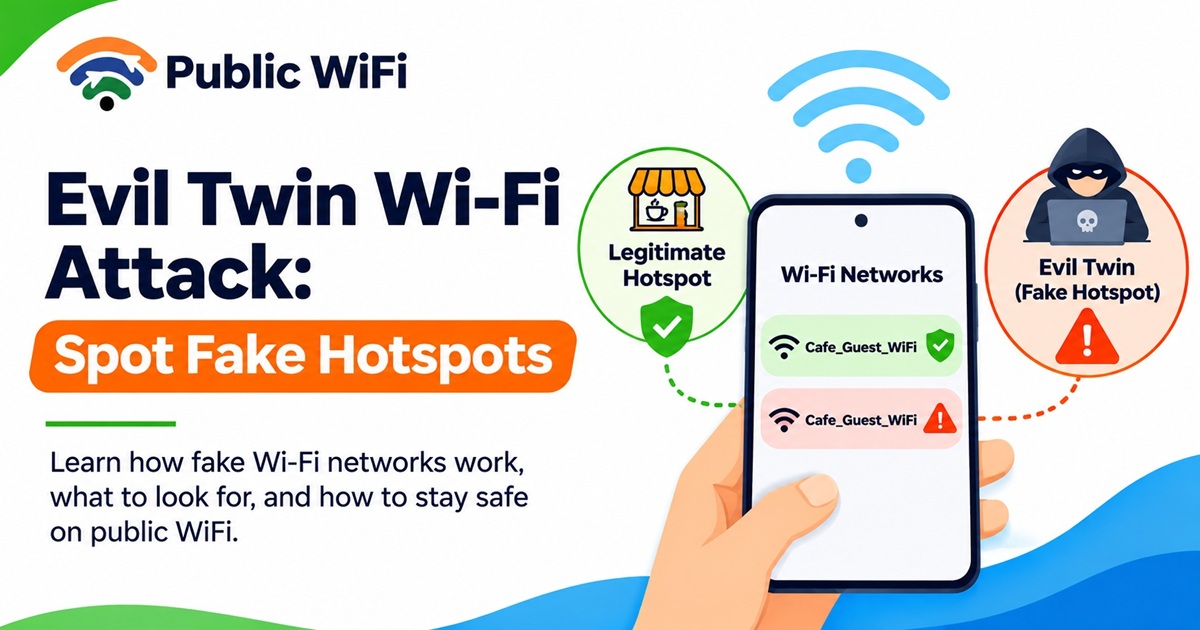
An Evil Twin Wi-Fi attack is a cybersecurity threat in which an attacker creates a malicious wireless network that impersonates a legitimate Wi-Fi hotspot.
The fake network may use the same network name (SSID) as a trusted hotspot, making it difficult for users to distinguish between them.
For example, imagine you're sitting in a café that provides free Wi-Fi.
The café's legitimate network is named:
Cafe_Guest_WiFi
An attacker nearby could create another wireless network using exactly the same name.
Your phone might display two networks with identical names, or it may automatically connect to one of them if certain conditions are met.
If you connect to the malicious hotspot, the attacker may be able to monitor some network activity, redirect you toward fraudulent websites, or display a deceptive login page.
Important: Connecting to a fake hotspot does not automatically mean all your passwords become visible. HTTPS encryption and other modern security protections can prevent attackers from reading encrypted communications. However, phishing, insecure connections, and malicious redirects still create significant risks.
2. How Does an Evil Twin Wi-Fi Attack Work?
An Evil Twin attack typically follows several stages.
Step 1: The Attacker Identifies a Popular Wi-Fi Network
The attacker identifies a location where people frequently connect to public wireless networks, such as:
- Cafés and restaurants
- Railway stations
- Airports
- Shopping malls
- Hotels
- Educational institutions
- Public waiting areas
These environments are attractive because users may expect free or easily accessible Wi-Fi.
Step 2: A Fake Wireless Network Is Created
The attacker configures a wireless hotspot with a name similar or identical to the legitimate network.
For example:
| Legitimate Network | Suspicious Network |
|---|---|
| Airport_Free_WiFi | Airport_Free_WiFi |
| Cafe_Guest | Cafe_Guest |
| Hotel_WiFi | Hotel_WiFi |
| Railway_WiFi | Railway_WiFi |
Identical names alone don't prove that a network is malicious. Legitimate organizations may use the same SSID across multiple access points.
However, an unexpected network that imitates a trusted hotspot deserves additional verification.
Step 3: Users Connect to the Fake Hotspot
A user might select the malicious network because:
- Its signal appears stronger.
- It has the expected Wi-Fi name.
- It doesn't require a password.
- The device automatically reconnects to a previously saved network.
- The user assumes every hotspot in the location is legitimate.
Step 4: The Attacker Attempts to Intercept Information
After a device connects, the attacker may attempt to:
- Observe unencrypted network traffic.
- Display a fake Wi-Fi login page.
- Redirect users to phishing websites.
- Collect credentials entered into fraudulent forms.
- Manipulate insecure DNS or HTTP requests.
- Trick users into downloading malicious applications.
The attacker's capabilities depend on the network setup, device protections, and whether traffic is properly encrypted.
3. What Information Could Be at Risk?
Different types of information may be exposed depending on the attack.
Login Credentials
A fake captive portal may ask users to enter an email address, password, or other sensitive information.
If the user submits their credentials to a fraudulent page, the attacker may capture them.
Personal Information
Malicious websites may request:
- Full name
- Mobile number
- Email address
- Residential address
- Personal identification details
Never provide sensitive information simply because a Wi-Fi login page requests it.
Browsing Activity
A malicious hotspot operator may observe certain network metadata, such as domain lookup information or traffic patterns, depending on encryption and device settings.
HTTPS, encrypted DNS, and VPN technologies can reduce the information exposed, but they don't eliminate every privacy risk.
Financial Information
Attackers may attempt to imitate banking or payment websites.
However, modern banking applications and HTTPS connections provide important safeguards. Attackers generally need to bypass those protections or deceive users into entering information into fraudulent interfaces.
Never enter banking passwords, UPI PINs, or payment OTPs into a Wi-Fi authentication page.
4. Seven Warning Signs of a Fake Public Wi-Fi Hotspot
Recognizing suspicious behavior is one of the easiest ways to reduce your risk.
1. Multiple Networks With Similar Names
If you see several Wi-Fi networks with nearly identical names, verify the correct one with the venue operator.
2. Unexpected Login Requirements
A network that suddenly requests your email password, banking information, or payment PIN should raise concerns.
Legitimate hotspots may require authentication, but their requirements should be consistent with the provider's official instructions.
3. Suspicious Website Addresses
Pay close attention to URLs displayed during login.
For example, a legitimate service might use:
https://public-wifi.co.in/
A phishing website might imitate the name using a different or misleading domain.
Always verify the actual domain before entering credentials.
4. Browser Security Warnings
If your browser displays an invalid certificate or unsafe connection warning, don't bypass it to enter passwords or financial information.
5. Unexpected Application Downloads
Be cautious if a hotspot asks you to install an unfamiliar APK, browser extension, or security application.
6. Repeated Login Redirects
Repeated redirection to unrelated websites or unusual authentication pages may indicate a configuration problem or malicious activity.
7. Unverified Network Names
A strong Wi-Fi signal or familiar network name doesn't prove that a hotspot belongs to the venue.
Confirm the SSID through an official sign, staff member, or trusted provider website.
5. How to Protect Yourself From Evil Twin Wi-Fi Attacks
The following precautions can significantly reduce your exposure.
Verify the Official Wi-Fi Network
Before connecting, confirm the network name with the organization providing the service.
For Public WiFi users, visit Public WiFi and use the official coverage and support resources to help verify service information.
Turn Off Automatic Wi-Fi Connections
Disable automatic connection to unfamiliar public networks.
This gives you more control over which hotspot your device uses.
Use HTTPS Websites
Prefer websites that use HTTPS encryption.
Check the website's domain carefully, especially before signing in.
Remember that HTTPS protects the connection but doesn't guarantee that the website itself is legitimate.
Enable Multi-Factor Authentication
Whenever possible, enable two-factor or multi-factor authentication for important online accounts.
This adds another layer of protection if a password is stolen.
Consider Using a Trusted VPN
A reputable VPN can encrypt network traffic between your device and the VPN provider.
This can reduce exposure to local network interception.
However, a VPN does not automatically protect you from phishing websites, malicious downloads, or entering information into fraudulent pages.
Keep Your Devices Updated
Install operating system and browser security updates regularly.
Updated software helps protect against known vulnerabilities.
Avoid Sensitive Activities on Unverified Networks
If you cannot confirm that a hotspot is legitimate, use a trusted mobile connection for important transactions.
Forget Suspicious Networks
Remove untrusted saved Wi-Fi networks from your device to prevent accidental reconnection.
6. Evil Twin Wi-Fi vs Regular Public Wi-Fi: What's the Difference?
| Feature | Legitimate Public Wi-Fi | Evil Twin Wi-Fi |
|---|---|---|
| Purpose | Provide authorized internet access | Deceive users or facilitate malicious activity |
| Network name | Official or authorized SSID | Often imitates an official SSID |
| Operator | Authorized service provider | Unauthorized attacker |
| Login page | Provider's authorized authentication system | May display a fraudulent login page |
| Security | Depends on configuration and safeguards | Controlled or manipulated by an attacker |
| Privacy | Depends on provider policies and encryption | Potentially exposes users to interception or phishing |
| User protection | Verify the provider and use secure connections | Avoid connecting or disconnect immediately |
Note: A legitimate public hotspot can still be poorly secured, while a malicious hotspot can imitate convincing security features. No single visual indicator guarantees that a network is safe.
7. What Should You Do if You Connect to a Fake Wi-Fi Network?
If you suspect that you've connected to a malicious hotspot, take the following steps.
Step 1: Disconnect immediately.
Turn off Wi-Fi and switch to a trusted network or mobile data connection.
Step 2: Forget the suspicious network.
Remove it from your saved Wi-Fi networks.
Step 3: Change potentially exposed passwords.
If you entered account credentials into a suspicious page, change those passwords using a trusted connection.
Step 4: Enable multi-factor authentication.
Review your account security settings and enable additional authentication where available.
Step 5: Check account activity.
Look for unfamiliar logins, payment attempts, or security notifications.
Step 6: Scan your device if necessary.
If you downloaded or installed something suspicious, use trusted device security tools and remove unfamiliar applications.
Step 7: Report suspected fraud.
If you're in India and believe you've experienced cyber fraud, you can report it through the official National Cyber Crime Reporting Portal.
For financial cyber fraud, India also provides the 1930 cybercrime helpline. Report promptly and follow the official instructions.
8. How Public WiFi Users Can Connect More Safely
At Public WiFi, we believe that convenient internet access should be accompanied by responsible security practices.
Whether you're using wireless internet for online classes, office work, entertainment, or everyday browsing, it's important to verify the service before connecting.
Here are a few useful habits:
- Check Coverage: Visit the Public WiFi Coverage page to explore listed service areas.
- Verify Network Details: Confirm the correct hotspot and connection instructions at your location.
- Use Official Pages: Access subscription and account services through the official Public WiFi website.
- Protect Your Credentials: Never share your password, OTP, or payment PIN with unknown individuals.
- Keep Your Device Secure: Use current software, secure browsing, and device authentication.
- Contact Support: If you notice an unfamiliar network or suspicious login page, contact Public WiFi Support for assistance.
These practices can help make your public Wi-Fi experience more secure and reliable.
9. Frequently Asked Questions (FAQs)
Q1. What is an Evil Twin Wi-Fi attack?
An Evil Twin attack occurs when someone creates a fraudulent wireless hotspot that impersonates a legitimate Wi-Fi network to deceive users.
Q2. Can hackers steal passwords through public Wi-Fi?
Attackers may steal passwords through phishing pages or insecure connections. Proper HTTPS encryption helps protect credentials in transit, but users must still verify the websites where they enter information.
Q3. Can a fake Wi-Fi network have the same name as a real one?
Yes. Multiple wireless networks can broadcast identical SSIDs, which is one reason users should verify the correct network with the service provider.
Q4. Does a VPN prevent Evil Twin attacks?
A trustworthy VPN can protect traffic passing through its encrypted tunnel, but it cannot prevent every attack. Users may still encounter phishing pages, malicious applications, or fake authentication prompts.
Q5. Is public Wi-Fi safe for online banking?
Online banking apps and websites typically use encryption and additional security controls. Nevertheless, users should verify their network and banking application and avoid performing financial transactions on suspicious hotspots.
Q6. How can I tell whether a Wi-Fi login page is genuine?
Verify the provider's official network name, inspect the website domain carefully, and avoid entering unrelated credentials or sensitive financial information.
Q7. What should I do if I find a suspicious public Wi-Fi hotspot?
Avoid connecting, notify the venue or network operator, and report suspected cybercrime through official channels where appropriate.
10. Final Thoughts
An Evil Twin Wi-Fi attack demonstrates why it's important to look beyond a familiar network name or strong Wi-Fi signal.
Fake hotspots can imitate legitimate networks and attempt to trick users into revealing credentials or accessing fraudulent websites.
The good news is that a few simple precautions can greatly reduce your risk:
- Verify the Wi-Fi network before connecting.
- Avoid suspicious login pages.
- Use HTTPS and trusted applications.
- Enable multi-factor authentication.
- Keep your devices updated.
- Disconnect from networks you cannot verify.
Smart connectivity starts with informed choices.
At Public WiFi, our goal is to help people across India discover convenient, affordable wireless internet access while encouraging responsible online safety practices.
Explore Public WiFi Connectivity
Looking for wireless internet access in your area?
Explore our services and find connectivity options suited to your needs.
- Website: https://public-wifi.co.in/
- Check Coverage: https://public-wifi.co.in/coverage
- Explore Plans: https://public-wifi.co.in/plans
- Contact Support: https://public-wifi.co.in/contact
Stay Connected. Stay Informed. Stay Secure.
Disclaimer: This article is provided for general cybersecurity awareness and educational purposes. Security risks and available protections vary depending on the device, operating system, network configuration, and individual circumstances.