Introduction
Have you ever connected to a WiFi network with excellent signal strength but experienced slow internet speeds, buffering videos, or unstable video calls? The problem may not always be your internet connection. It could be WiFi channel congestion.
As more smartphones, laptops, smart devices, and wireless routers operate in the same area, they compete for limited wireless airtime. This is particularly common in apartment buildings, shopping malls, offices, railway stations, cafés, and other locations with public WiFi hotspots.
Understanding WiFi channel congestion can help you identify connectivity problems and enjoy a smoother wireless internet experience.
What Is WiFi Channel Congestion?
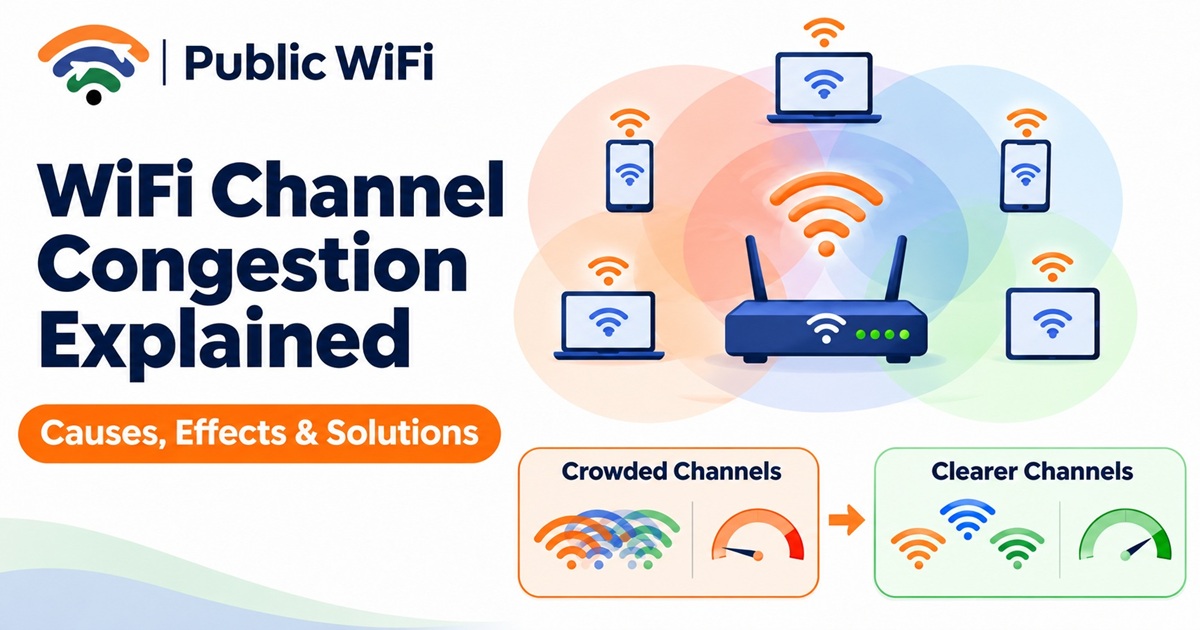
WiFi channel congestion occurs when multiple wireless devices or access points compete for airtime on the same wireless channel.
WiFi networks use radio frequencies to transmit data between connected devices and wireless access points. These frequency bands are divided into smaller sections called channels.
When too many devices or networks use the same channel, devices may need to wait before transmitting data. This can reduce available throughput, increase latency, and affect overall network performance.
Think of a WiFi channel as a road. When only a few vehicles use the road, traffic moves smoothly. When hundreds of vehicles enter the same road, congestion occurs and travel becomes slower.
Wireless networks experience a similar problem.
How Do WiFi Channels Work?
WiFi commonly operates across three frequency bands:
| Frequency Band | Coverage | Available Channels | Congestion Risk |
|---|---|---|---|
| 2.4 GHz | Longer range | Limited | Generally high |
| 5 GHz | Moderate range | More channels | Generally lower |
| 6 GHz | Shorter practical range | Many additional channels where permitted | Generally lower |
Each frequency band offers different advantages in terms of speed, coverage, interference, and device compatibility.
The availability of specific channels depends on local regulations, router configuration, and device capabilities.
2.4 GHz WiFi Channels
The 2.4 GHz frequency band is widely supported by smartphones, laptops, routers, and smart home devices.
However, many channels overlap with neighbouring channels. Channels 1, 6, and 11 are commonly recommended for non-overlapping 20 MHz channel configurations.
Because many wireless devices use this frequency band, congestion is particularly common in densely populated areas.
5 GHz WiFi Channels
The 5 GHz band generally provides more channel options and can deliver higher wireless speeds under suitable conditions.
It is often a better choice for:
- HD and 4K video streaming
- Online gaming
- Video conferencing
- Large file downloads
- Remote work
- High-density wireless environments
However, its signal generally has a shorter practical range than 2.4 GHz under comparable conditions.
6 GHz WiFi Channels
Compatible WiFi 6E and WiFi 7 devices can use the 6 GHz frequency band where regulations permit.
This band provides additional wireless spectrum that can help reduce competition with older WiFi devices.
Both the access point and the connected device must support 6 GHz connectivity, and its availability depends on regional regulations.
What Causes WiFi Channel Congestion?
Several factors can contribute to congestion and interference in wireless networks.
1. Too Many Nearby WiFi Networks
In apartment complexes, commercial buildings, and crowded urban areas, multiple routers may operate on the same or overlapping channels.
Even when these networks belong to different households or businesses, they can affect each other's wireless performance.
2. Too Many Connected Devices
A single wireless access point may serve multiple smartphones, laptops, tablets, and other connected devices.
When many devices actively transfer data simultaneously, they compete for available wireless airtime.
This is especially noticeable in busy public WiFi hotspots.
3. Overlapping WiFi Channels
Overlapping channels can introduce interference between neighbouring wireless networks.
For example, two nearby 2.4 GHz routers using channels 1 and 3 may interfere with each other because their frequency ranges overlap.
Careful channel selection can help minimise this problem.
4. Interference from Other Electronic Devices
WiFi is not the only technology that uses radio frequencies.
Other devices operating in or near the 2.4 GHz band include:
- Bluetooth devices
- Microwave ovens
- Wireless security cameras
- Some cordless phones
- Smart home devices
- Wireless accessories
These devices may contribute to interference, depending on their operating frequencies and proximity to the access point.
5. Excessive WiFi Channel Width
Wider WiFi channels can provide higher theoretical wireless speeds, but they also occupy more frequency spectrum.
Common WiFi channel widths include:
- 20 MHz
- 40 MHz
- 80 MHz
- 160 MHz
- 320 MHz on compatible WiFi 7 equipment and permitted spectrum
In crowded wireless environments, narrower channels can sometimes deliver more consistent performance by reducing interference and improving channel reuse.
6. Poor Wireless Network Planning
Deploying multiple access points without proper channel planning can increase congestion instead of improving coverage.
Professional wireless network deployment requires careful consideration of access point placement, transmission power, channel allocation, and expected user demand.
WiFi Channel Congestion vs WiFi Interference
Although channel congestion and interference are closely related, they are not exactly the same.
| Feature | Channel Congestion | WiFi Interference |
|---|---|---|
| Primary cause | Competition for wireless airtime | Disruptive radio signals |
| Common source | Nearby WiFi networks and active devices | Overlapping channels or other radio-emitting devices |
| Impact on speed | Reduced available throughput | Transmission errors and reduced throughput |
| Impact on latency | Increased waiting time | Delays and retransmissions |
| Common solution | Better channel planning and load distribution | Reduce overlapping signals and interference sources |
Both problems can occur simultaneously and affect your internet experience.
Common Signs of WiFi Channel Congestion
Your wireless network may be experiencing congestion if you notice:
- Slow internet despite strong WiFi signal strength
- Frequent video buffering
- High ping during online gaming
- Unstable video meetings
- Delayed website loading
- Inconsistent download and upload speeds
- Increased packet loss
- Better performance during off-peak hours
- Slow connectivity in crowded public places
However, these symptoms can also result from internet service provider problems, insufficient bandwidth, or device-related issues.
A strong WiFi signal alone does not guarantee a fast internet connection.
Why Is WiFi Channel Congestion Common in Public Places?
Public WiFi networks operate in environments where many people need internet access simultaneously.
Common examples include:
- Railway stations and airports
- Shopping malls
- Restaurants and cafés
- Educational institutions
- Office complexes
- Hotels
- Libraries
- Residential societies
- Public markets
These locations may contain multiple wireless access points and hundreds of active wireless devices.
Without proper network design, channel congestion can reduce internet performance even when sufficient broadband bandwidth is available.
Well-managed public WiFi infrastructure uses appropriate channel planning, access point placement, and bandwidth management to improve the experience for connected users.
How to Check WiFi Channel Congestion
You can use several methods to identify potential wireless congestion.
1. Use a WiFi Analyzer
A WiFi analyzer application can help identify nearby wireless networks and their operating channels.
Depending on the application and device, you may be able to view:
- Nearby WiFi networks
- Signal strength
- Channel numbers
- Frequency bands
- Channel width
- Overlapping wireless networks
Advanced wireless diagnostic tools may also measure channel utilisation and interference.
The number of nearby networks alone does not necessarily indicate how busy a channel is.
2. Perform an Internet Speed Test
Run an internet speed test at different times of the day.
Compare your results during busy and quiet periods.
Significant performance differences may indicate network congestion, although the issue could also originate from the broadband connection or internet service provider.
3. Compare Different Frequency Bands
If both 2.4 GHz and 5 GHz WiFi are available, compare their performance from the same location.
Better performance on 5 GHz may indicate congestion or interference on the 2.4 GHz band.
4. Check Latency and Packet Loss
High latency, fluctuating response times, and packet loss can indicate problems with wireless connectivity.
Testing the connection to your local network gateway and comparing it with an external internet destination can help distinguish local wireless problems from wider internet connection issues.
10 Ways to Reduce WiFi Channel Congestion
1. Switch to a Less Congested WiFi Channel
If you manage your own wireless router, use a WiFi analyzer or router diagnostics to identify suitable channels with lower utilisation.
For 2.4 GHz networks, channels 1, 6, and 11 are commonly preferred when using 20 MHz channel widths.
Public WiFi users generally cannot change access point channels themselves.
2. Use the 5 GHz Frequency Band
Switching to 5 GHz can help avoid congestion commonly found on the 2.4 GHz band.
It is particularly useful when you are relatively close to the wireless access point and require higher speeds.
3. Reduce WiFi Channel Width
Using a 20 MHz channel width on the 2.4 GHz band can help reduce overlapping-channel interference.
In crowded 5 GHz environments, narrower channels may also provide more consistent performance than very wide channels.
4. Enable Automatic Channel Selection
Many modern routers and enterprise access points support automatic channel selection.
These systems can evaluate wireless conditions and select suitable operating channels.
Their effectiveness depends on the equipment, configuration, and how frequently wireless conditions are evaluated.
5. Upgrade to Modern WiFi Technology
WiFi 6 and WiFi 7 introduce technologies designed to improve wireless efficiency and performance.
Features such as OFDMA and MU-MIMO can improve how supported devices share wireless resources.
However, upgrading equipment alone cannot eliminate congestion without proper network planning.
6. Position Access Points Correctly
Proper access point placement can improve coverage and reduce unnecessary interference.
Avoid placing wireless routers:
- Inside metal cabinets
- Behind large electronic appliances
- Near microwave ovens
- In enclosed corners
- Unnecessarily close to other access points
Open and elevated locations are generally better for wireless coverage.
7. Manage Connected Devices
Limit unnecessary connected devices and background internet activity.
Automatic software updates, cloud backups, and large downloads can consume bandwidth and wireless airtime.
On shared public WiFi networks, responsible internet usage helps improve the experience for everyone.
8. Use Wired Connections Where Possible
For fixed devices such as desktop computers, smart televisions, and office equipment, Ethernet connections can reduce demand on wireless networks.
Businesses can also use wired backhaul connections between wireless access points to improve network efficiency.
9. Deploy Multiple Access Points Strategically
Large buildings and commercial spaces may require multiple access points to distribute wireless traffic effectively.
However, adding access points without proper channel and transmission power planning may increase interference.
A professionally designed wireless network balances coverage, capacity, and channel reuse.
10. Choose a Well-Managed Public WiFi Network
When connecting outside your home or office, choose a reputable public WiFi provider.
Look for:
- Reliable network coverage
- Appropriate network capacity
- Secure authentication
- Clear internet plan information
- Professional network management
- Accessible customer support
A properly managed public WiFi network can help reduce common connectivity problems and provide a more consistent internet experience.
How Does WiFi Channel Congestion Affect Businesses?
For businesses, poor wireless performance can affect more than customer internet browsing.
Congested WiFi networks may cause:
- Delayed digital payments
- Reduced employee productivity
- Poor customer experience
- Interrupted online meetings
- Slow cloud application performance
- Connectivity issues with billing systems
- Increased customer complaints
Shops, cafés, hotels, educational institutions, and offices should consider both internet bandwidth and wireless network capacity when deploying WiFi infrastructure.
Separating guest and internal business networks, implementing appropriate bandwidth controls, and monitoring wireless performance can help maintain reliable connectivity.
Tips for Using Public WiFi in Crowded Locations
If you frequently use public WiFi in busy locations, follow these practical tips:
- Move closer to the wireless access point where possible.
- Connect to the official 5 GHz network if available.
- Avoid unnecessary background downloads.
- Disable automatic cloud backups when they are not needed.
- Reduce video streaming quality if the connection becomes unstable.
- Disconnect devices that are not actively being used.
- Schedule large downloads during less busy periods.
- Verify that you are connecting to the official public WiFi network.
- Contact the network provider if connectivity problems persist.
These simple steps can help improve your experience without requiring changes to the hotspot's network configuration.
Enjoy Better Connectivity with Public WiFi
Whether you are attending online classes, working remotely, browsing the internet, or staying connected while travelling, reliable wireless connectivity is an essential part of everyday digital life.
Public WiFi aims to make wireless internet connectivity more accessible and affordable across supported locations in India.
With Public WiFi, you can:
- Explore available WiFi hotspots near your location.
- Compare internet plans based on your requirements.
- Connect multiple devices according to your subscribed plan.
- Access the internet at supported hotspot locations.
- Contact customer support for connectivity assistance.
Explore our services:
- Check Public WiFi Coverage
- Explore Public WiFi Internet Plans
- Create Your Public WiFi Account
- Contact Public WiFi Support
Service availability and actual network performance may vary depending on location, connected devices, network demand, and environmental conditions.
Frequently Asked Questions (FAQs)
What is WiFi channel congestion?
WiFi channel congestion occurs when multiple wireless networks or devices compete for available airtime on the same wireless channel, potentially reducing speed and increasing latency.
Which WiFi channel is best for 2.4 GHz?
Channels 1, 6, and 11 are commonly recommended for 20 MHz channel configurations. The best channel depends on nearby networks, channel utilisation, and local wireless conditions.
Is 5 GHz WiFi less congested than 2.4 GHz?
Generally, 5 GHz offers more available channels and may experience less congestion. However, it can also become congested in locations with many active wireless networks.
Does WiFi channel congestion reduce internet speed?
Yes. Channel congestion can reduce effective wireless throughput because connected devices must compete for available airtime.
Can WiFi congestion happen even with full signal bars?
Yes. Full WiFi signal bars indicate strong received signal strength, but they do not indicate how busy the wireless channel is or how much internet bandwidth is available.
Does restarting a router fix channel congestion?
Restarting a router may temporarily improve performance, particularly if it automatically selects a better channel during startup. However, it does not necessarily resolve persistent congestion.
Can a faster internet plan solve WiFi channel congestion?
Not necessarily. A faster internet plan increases available internet bandwidth, but it does not directly eliminate wireless airtime congestion or radio interference.
Does WiFi 6 reduce channel congestion?
WiFi 6 can improve wireless efficiency through technologies such as OFDMA and MU-MIMO. However, its effectiveness depends on device compatibility, network configuration, and surrounding wireless conditions.
Why is public WiFi sometimes slower during peak hours?
During peak hours, more users may share the same wireless airtime and available internet bandwidth. This increased demand can reduce individual connection speeds.
Can I change the WiFi channel of a public hotspot?
Generally, no. WiFi channels are managed by the hotspot operator. Users can improve their experience by selecting an available frequency band, moving closer to an access point, or contacting the service provider.
Conclusion
WiFi channel congestion is one of the common reasons behind slow and inconsistent wireless internet connectivity, especially in densely populated areas and crowded public places.
Understanding how WiFi channels work, choosing appropriate frequency bands, and implementing effective wireless network management can significantly improve connectivity.
For individuals and businesses alike, a reliable WiFi experience depends not only on internet speed but also on wireless capacity, channel utilisation, network design, and proper infrastructure management.
Stay connected, work efficiently, and explore affordable wireless internet options with Public WiFi.
Public WiFi — Making wireless internet more accessible across India.