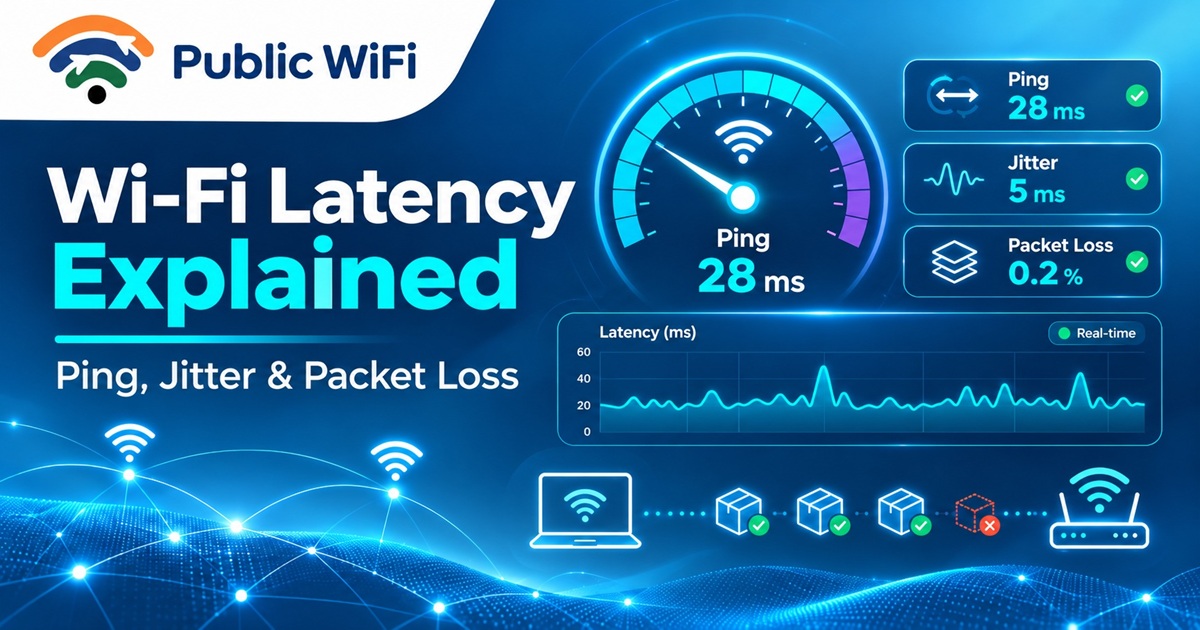
Wi-Fi Latency Explained: What Are Ping, Jitter, and Packet Loss?
Published: November 13, 2026
Author: Public WiFi Team
Category: Guides & Tutorials
Reading Time: 7–9 minutes
Introduction
Have you ever experienced a situation where your Wi-Fi speed test shows excellent download speeds, but your video calls keep freezing, online games lag, or websites respond slowly?
You might have a fast internet connection, but internet speed alone doesn't determine your browsing experience.
Three important factors influence the responsiveness and stability of your internet connection:
- Ping (Latency) – How quickly data travels between your device and a server.
- Jitter – How much the delay changes between data packets.
- Packet Loss – How much data fails to reach its destination.
Understanding these measurements can help you troubleshoot slow or unstable Wi-Fi connections, improve online gaming performance, and enjoy smoother video calls.
In this guide, we'll explain what ping, latency, jitter, and packet loss mean, how they affect your internet experience, and how to improve them when using public Wi-Fi networks in India.
1. What Is Wi-Fi Latency?
Latency refers to the time required for data to travel from one point to another across a network.
When you open a website, send a message, or join an online meeting, your device communicates with remote servers.
That communication takes time.
Latency is usually measured in milliseconds (ms).
For example, if a server responds to your request in 20 milliseconds, your connection has a round-trip latency of approximately 20 ms.
Why Does Latency Matter?
Lower latency means your internet connection responds more quickly.
This is particularly important for activities requiring real-time communication, such as:
- Online gaming
- Video conferencing
- Voice over IP (VoIP) calls
- Remote desktop applications
- Interactive online learning
- Live collaboration tools
Understanding Latency Levels
| Latency (Ping) | General Assessment | Typical Experience |
|---|---|---|
| Below 20 ms | Excellent | Highly responsive |
| 20–50 ms | Very good | Smooth for most activities |
| 50–100 ms | Good | Usually suitable for everyday use |
| 100–150 ms | Moderate | Some real-time delay may be noticeable |
| Above 150 ms | High | Noticeable lag in interactive applications |
Note: These are general guidelines for round-trip latency. Results depend on the server location, network conditions, and application requirements.
A 100 ms connection may work perfectly for browsing but feel less responsive during competitive online gaming.
2. What Is Ping?
Ping is a networking utility commonly used to measure how long it takes a small packet of data to travel from your device to a destination and back.
The result is called round-trip time (RTT).
Although ping and latency are frequently used interchangeably, they are not exactly the same.
- Latency is the general concept of communication delay.
- Ping is a tool used to measure network responsiveness.
Example
Imagine you're connected to a public Wi-Fi hotspot in Patna and accessing a server in Mumbai.
Your device sends a small packet to the server, which responds.
If the entire exchange takes 35 milliseconds, your ping is approximately 35 ms.
If the same request takes 180 milliseconds, you may notice slower responsiveness.
How to Check Ping on Windows
- Open Command Prompt.
- Enter the following command:
ping 1.1.1.1
- Press Enter.
- Review the response times and packet loss summary.
Example output:
Reply from 1.1.1.1: bytes=32 time=28ms TTL=57
Reply from 1.1.1.1: bytes=32 time=31ms TTL=57
Reply from 1.1.1.1: bytes=32 time=29ms TTL=57
Reply from 1.1.1.1: bytes=32 time=30ms TTL=57
Here, the average ping is approximately 30 ms.
This suggests that the selected destination is responding quickly.
Important: Some servers block or deprioritize ping requests. A failed ping does not always mean your internet connection is down.
3. What Is Jitter in Wi-Fi?
Jitter is the variation in latency between successive data packets.
A stable connection delivers packets at reasonably consistent intervals.
An unstable connection may deliver packets with unpredictable delays.
Example
Consider two Wi-Fi connections:
Connection A:
Ping: 20 ms, 21 ms, 19 ms, 20 ms, 22 ms
Connection B:
Ping: 20 ms, 85 ms, 35 ms, 140 ms, 25 ms
Connection A has relatively consistent latency.
Connection B experiences significant variations.
Even if both connections have similar download speeds, Connection B may perform worse during real-time applications.
How Jitter Affects Internet Performance
High jitter can cause:
- Robotic or distorted audio during video calls
- Voice interruptions
- Sudden delays in online gaming
- Inconsistent remote desktop responsiveness
- Interruptions during live streaming
What Is a Good Jitter Value?
| Jitter | General Assessment |
|---|---|
| Below 10 ms | Excellent |
| 10–20 ms | Good |
| 20–30 ms | Acceptable for some applications |
| Above 30 ms | May affect real-time communication |
These values are approximate. Applications respond differently depending on their buffering and error-correction capabilities.
For smooth voice and video communication, consistently low jitter is generally preferable.
4. What Is Packet Loss?
Internet communication involves dividing information into smaller pieces called packets.
These packets travel through network equipment until they reach their destination.
Sometimes, packets fail to arrive.
This is called packet loss.
Example
Suppose your device sends 100 packets to a server.
If only 97 packets arrive successfully, the observed packet loss is 3%.
Packet loss can happen because of:
- Weak Wi-Fi signals
- Wireless interference
- Network congestion
- Faulty routers or access points
- Overloaded network equipment
- Unstable internet connections
- Problems along the route to the destination
What Is an Acceptable Packet Loss Rate?
| Packet Loss | General Assessment |
|---|---|
| 0% | Ideal |
| Below 1% | Usually good |
| 1–2% | May affect sensitive applications |
| 2–5% | Noticeable reliability problems possible |
| Above 5% | Significant performance issues likely |
Packet loss is particularly problematic for interactive applications.
Some applications can recover missing data through retransmission or error correction, but this may introduce additional delays.
5. Ping vs Jitter vs Packet Loss: What's the Difference?
Although these three measurements are related, they describe different aspects of network performance.
| Factor | What It Measures | Main Impact |
|---|---|---|
| Ping | Round-trip communication delay | Responsiveness |
| Jitter | Variation in packet delay | Connection consistency |
| Packet Loss | Percentage of packets lost | Reliability |
| Download Speed | Rate of receiving data | Downloading and streaming |
| Upload Speed | Rate of sending data | Uploading and video calls |
Simple Analogy
Imagine a delivery service transporting packages.
Ping: How long a delivery takes.
Jitter: How much delivery times vary.
Packet Loss: How many packages never arrive.
Bandwidth: How many packages can be transported during a given period.
A delivery company might transport thousands of packages every minute, but if deliveries are delayed or packages are lost, its overall service quality suffers.
The same principle applies to internet connectivity.
6. Why Does Wi-Fi Have High Ping or Jitter?
Several factors can affect latency and connection quality.
1. Network Congestion
When many users connect to the same Wi-Fi network, they share available wireless capacity and internet bandwidth.
During busy periods, network congestion can increase response times.
2. Weak Wi-Fi Signal
If your device is far from the access point, signal quality may decrease.
This can cause retransmissions and inconsistent network performance.
3. Wireless Interference
Nearby Wi-Fi networks, Bluetooth devices, and certain household appliances can contribute to interference, particularly on the 2.4 GHz band.
4. Background Downloads
Operating system updates, cloud backups, and large downloads may consume bandwidth and create additional latency.
5. Distant Servers
A server located far from your device generally requires data to travel a longer network path.
For example, a server in India will often provide lower latency to Indian users than a comparable server in another continent, although network routing also matters.
6. Router or Access Point Overload
Older or overloaded networking equipment can struggle to process traffic efficiently.
This may cause delays, dropped packets, and unstable connections.
7. How to Reduce Ping, Jitter, and Packet Loss
Here are practical ways to improve your Wi-Fi connection.
Tip 1: Move Closer to the Wi-Fi Access Point
A stronger, cleaner wireless signal can reduce retransmissions and improve stability.
Avoid unnecessary walls and physical obstacles whenever possible.
Tip 2: Use the Right Wi-Fi Frequency
If both bands are available:
- 2.4 GHz: Often provides better range and wall penetration.
- 5 GHz: Often provides higher speeds and less interference, particularly at shorter distances.
The best option depends on your distance from the router and local network conditions.
Tip 3: Stop Unnecessary Background Downloads
Pause large file transfers, automatic updates, and cloud backups when using real-time applications.
This can help reduce congestion.
Tip 4: Disconnect Unused Devices
If several devices are using your connection simultaneously, disconnect devices that don't need internet access.
This reduces competition for shared bandwidth.
Tip 5: Choose Nearby Application Servers
Online games and some other applications allow you to select a server region.
Choose a nearby server with a reliable connection whenever possible.
Tip 6: Update Your Device
Keep your operating system, network drivers, and Wi-Fi software updated.
Updates may fix connectivity issues and improve compatibility.
Tip 7: Avoid Peak Network Usage
Public hotspots can become busier during popular usage periods.
If your activity is not time-sensitive, trying again during a quieter period may improve performance.
Tip 8: Use a Wired Connection When Available
For important video conferences or competitive gaming, Ethernet can eliminate the variability of the Wi-Fi radio link.
However, it cannot fix congestion or packet loss elsewhere on the internet.
Tip 9: Test Your Internet Connection
Use a network diagnostic or speed-testing tool that measures:
- Download speed
- Upload speed
- Latency
- Jitter
- Packet loss, where supported
Run multiple tests to understand how performance changes over time.
Tip 10: Contact Your Internet Provider
If performance remains poor across different devices and destinations, contact your service provider.
Provide the time of the issue, affected applications, and relevant test results to help with troubleshooting.
8. Why Network Stability Matters for Public Wi-Fi
Public Wi-Fi hotspots serve a wide variety of users.
Some people browse websites, while others attend online classes, participate in video conferences, download files, or use cloud applications.
A good public Wi-Fi experience depends on more than high download speeds.
Important factors include:
Reliable Connectivity: Users should experience minimal unexpected interruptions.
Stable Latency: Consistent response times support real-time applications.
Adequate Bandwidth: Available capacity should support expected usage.
Effective Network Management: Proper traffic management can help reduce congestion.
Security: Authentication, encryption, and appropriate network isolation can help protect users.
At Public WiFi, our goal is to make wireless internet access more convenient and accessible across supported locations in India.
Users can explore available hotspot locations, review subscription options, and choose connectivity plans based on their needs.
Actual connection performance depends on hotspot conditions, the number of connected users, device capabilities, and the destination service.
9. How Much Ping Do You Need for Different Online Activities?
Different activities have different network requirements.
| Online Activity | Suggested Latency | Importance of Low Jitter |
|---|---|---|
| Web browsing | Below 150 ms | Low |
| Email and messaging | Below 150 ms | Low |
| Video streaming | Below 100 ms | Moderate |
| Online classes | Below 100 ms | High |
| Video conferencing | Below 100 ms | High |
| Casual online gaming | Below 100 ms | High |
| Competitive gaming | Below 50 ms | Very high |
| Remote desktop | Below 50–100 ms | High |
These are approximate targets rather than strict technical requirements.
For streaming and downloads, sufficient throughput and buffering may matter more than very low ping.
For gaming and interactive communication, low latency, low jitter, and minimal packet loss are particularly valuable.
10. Frequently Asked Questions
Q1. Is 20 ms ping good for Wi-Fi?
Yes. A ping of 20 ms is generally excellent for everyday browsing, video conferencing, and online gaming when measured against the relevant server.
Q2. Can fast internet still have high ping?
Yes. Download speed and latency measure different aspects of a connection. A 100 Mbps connection can still have high ping because of congestion, routing, or server distance.
Q3. What causes high jitter on public Wi-Fi?
High jitter can result from congestion, interference, weak wireless signals, overloaded equipment, and inconsistent network routing.
Q4. Is 0% packet loss possible?
Yes. A healthy connection can show 0% packet loss during a particular test. However, short tests cannot guarantee that packet loss will never occur.
Q5. Does 5 GHz Wi-Fi reduce ping?
Sometimes. A less congested 5 GHz connection with a strong signal may reduce Wi-Fi-related delays. However, 5 GHz does not automatically guarantee lower internet latency.
Q6. Can a VPN reduce ping?
Usually, a VPN introduces some additional processing and routing overhead. In certain unusual routing situations, it may improve latency, but this is not guaranteed.
Q7. What is more important: ping or download speed?
It depends on the activity. Download speed is important for transferring large amounts of data, while low ping is particularly important for interactive applications such as online gaming and video calls.
Q8. How can I test packet loss on Windows?
Open Command Prompt and run:
ping -n 100 1.1.1.1
After the test, Windows displays the percentage of ping requests that did not receive a response. This is an ICMP-based measurement and may not reflect packet loss experienced by every application.
Conclusion
A fast Wi-Fi connection is not always a responsive or reliable connection.
To understand your true internet experience, it's important to consider more than download and upload speeds.
Remember:
- Ping measures responsiveness.
- Jitter measures delay variation.
- Packet loss measures delivery reliability.
- Bandwidth measures data transfer capacity.
For activities such as online learning, remote work, gaming, and video conferencing, stable network performance can be just as important as high download speeds.
By understanding these measurements and following practical troubleshooting techniques, you can make better decisions about your internet connection.
Stay Connected with Public WiFi
Looking for convenient wireless internet access in India?
Visit Public WiFi to explore connectivity options available in your area.
Public WiFi — Stay Connected, Wherever You Go.