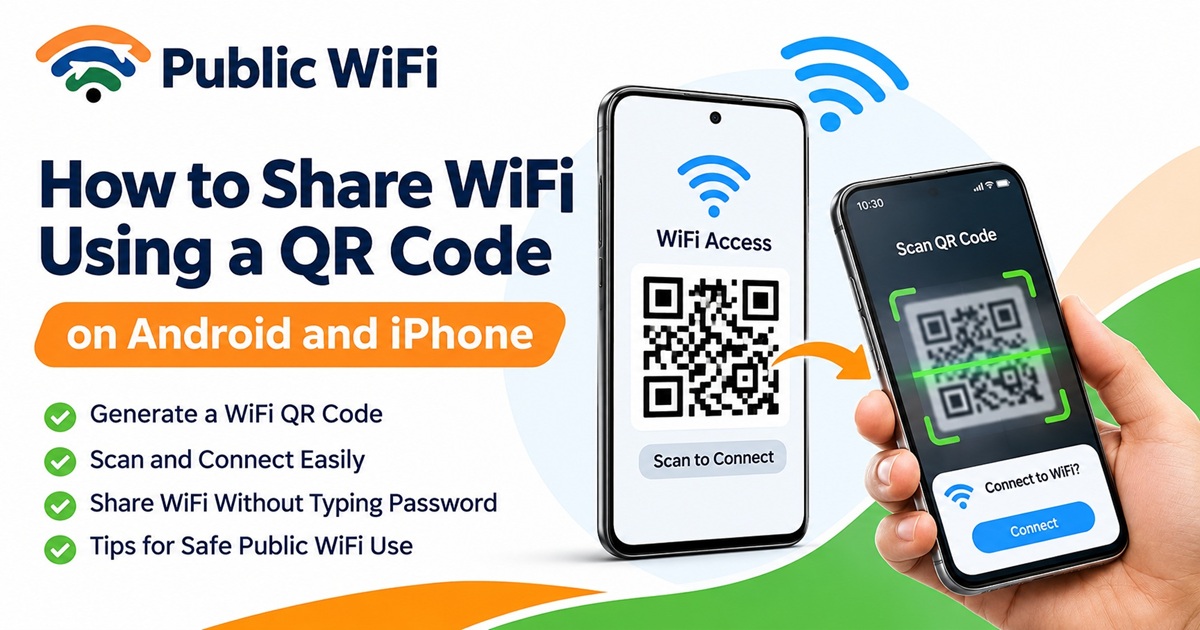
How to Share WiFi Using a QR Code on Android and iPhone
Connecting to a WiFi network usually requires selecting the network name and entering a password. While this process is simple, typing long or complicated WiFi passwords can be inconvenient, especially when connecting multiple devices or sharing internet access with friends, family, or customers.
Fortunately, modern smartphones offer a much easier solution: WiFi QR codes.
With a WiFi QR code, you can share wireless network details without manually typing the password. Simply scan the QR code using a compatible smartphone, and the device can connect to the WiFi network.
But how do WiFi QR codes work? Can you generate one on Android or iPhone? And are QR codes useful for public WiFi hotspots?
In this guide, we'll explain everything you need to know about WiFi QR codes, including how to create, scan, and share them securely.
What Is a WiFi QR Code?
A WiFi QR code is a special type of Quick Response (QR) code that stores wireless network connection information.
Instead of manually entering the WiFi network name and password, users can scan the QR code to retrieve the connection details.
A standard WiFi QR code may contain:
- Network Name (SSID): The name of the wireless network.
- Security Type: The authentication method used by the network.
- WiFi Password: The password required to connect, when applicable.
- Hidden Network Information: Whether the network uses a hidden SSID.
When scanned by a compatible device, the QR code allows the user to connect to the network without manually entering these details.
Important: A WiFi QR code does not provide internet service by itself. It simply helps devices join an existing wireless network.
How Does a WiFi QR Code Work?
WiFi QR codes use a standardized text format to encode wireless connection details.
When a smartphone scans the code, its operating system interprets the information and offers an option to connect.
Step-by-Step Process
- A WiFi network owner generates a QR code containing the network details.
- The QR code is displayed on a phone, printed card, poster, or website.
- Another user opens the camera or QR scanner on their device.
- The device recognizes the WiFi configuration.
- The user confirms the connection.
- The device attempts to join the specified WiFi network.
If the network requires additional authentication through a captive portal, the user must still complete that process.
Example of WiFi QR Code Data
A typical QR code may encode information in the following format:
WIFI:T:WPA;S:ExampleWiFi;P:ExamplePassword123;;
Here:
WIFI:identifies the information as a WiFi configuration.T:WPAspecifies a compatible security type.S:ExampleWiFiidentifies the network name.P:ExamplePassword123represents the network password.
This is an illustrative example using a fictional network and password.
Some generators require special escaping for punctuation characters in passwords and network names.
How to Share WiFi Using a QR Code on Android
Many modern Android smartphones include a built-in WiFi QR code sharing feature.
This allows users to share an existing wireless connection without downloading additional applications.
Steps to Generate a WiFi QR Code
- Open Settings on your Android smartphone.
- Select WiFi or Network & Internet.
- Open the details of your connected WiFi network.
- Look for the Share option.
- Authenticate using your PIN, password, fingerprint, or another supported method if requested.
- Your phone may display a WiFi QR code.
- Ask the other person to scan the code using their smartphone.
The other device can then attempt to connect to the same WiFi network.
Samsung Galaxy Phones
On many Samsung Galaxy devices:
- Open Settings.
- Tap Connections.
- Select Wi-Fi.
- Tap the settings icon beside the connected network.
- Select QR code.
- Show the code to the device you want to connect.
Note: Android menus and features may vary depending on the phone manufacturer and operating system version.
How to Share WiFi Using a QR Code on iPhone
Apple devices also support WiFi QR code functionality, although the available options depend on the iOS version.
Method 1: Using the Passwords App
On supported recent iOS versions:
- Open the Passwords app.
- Select Wi-Fi.
- Choose the saved WiFi network you want to share.
- Tap Show Network QR Code, if available.
- Ask another person to scan the displayed code.
This allows compatible devices to use the encoded network details to connect.
Method 2: Sharing WiFi Between Apple Devices
Apple also provides a built-in password-sharing feature.
If both devices meet Apple's requirements:
- Enable WiFi and Bluetooth on both devices.
- Keep the devices close together.
- Ensure the sharing device is connected to the WiFi network.
- On the second device, select the same WiFi network.
- The connected device may display a Share Password prompt.
- Approve the request to share the password.
This process does not require a QR code.
Method 3: Creating a QR Code Manually
If your device does not provide built-in WiFi QR code generation, you can use a trusted QR code generator.
Enter the network name, security type, and password to create a compatible QR code.
Avoid entering private WiFi passwords into unfamiliar websites.
A reputable offline QR code generator is preferable when handling sensitive network credentials.
How to Scan a WiFi QR Code
Most modern smartphones support QR code scanning through the camera.
On Android
- Open the Camera app.
- Point the camera toward the WiFi QR code.
- Wait for the network notification to appear.
- Tap the suggested WiFi connection.
- Confirm the connection if prompted.
If the camera does not recognize the code, try the QR scanner available in your phone's Quick Settings or supported scanning app.
On iPhone
- Open the Camera app.
- Point it toward the WiFi QR code.
- Wait for the WiFi connection notification.
- Tap the notification.
- Confirm that you want to join the network.
The device should attempt to connect using the information encoded in the QR code.
Benefits of Sharing WiFi Using QR Codes
WiFi QR codes offer several advantages for individuals and businesses.
1. Faster WiFi Connections
Users do not need to type complicated passwords.
Scanning a QR code can make the connection process quicker and more convenient.
2. Fewer Password Entry Errors
Long passwords containing uppercase letters, numbers, and symbols can be difficult to enter correctly.
QR codes reduce manual typing errors.
3. Convenient for Multiple Devices
QR codes can simplify connecting smartphones, tablets, and other compatible devices.
Each device still needs to support the network's security configuration.
4. Useful for Guests
Instead of repeating a WiFi password to every visitor, network owners can display a QR code.
Guests can scan the code whenever they need access.
5. Helpful for Businesses
Hotels, restaurants, cafés, offices, and coworking spaces can use QR codes to simplify guest connectivity.
6. Easy to Print and Display
WiFi QR codes can be printed on:
- Restaurant tables.
- Hotel reception desks.
- Office welcome cards.
- Café menus.
- Conference materials.
- Guest information posters.
This helps visitors find the correct network details with minimal assistance.
WiFi QR Codes vs Traditional Password Sharing
Both QR codes and traditional passwords can help users access wireless networks.
However, they offer different experiences.
| Feature | WiFi QR Code | Manual Password Entry |
|---|---|---|
| Connection process | Scan a QR code | Type the password |
| Convenience | High on supported devices | Requires manual entry |
| Typing errors | Reduced | Possible |
| Sharing with guests | Easy to display | Password must be communicated |
| Network security | Depends on underlying WiFi configuration | Depends on underlying WiFi configuration |
| Password confidentiality | QR may reveal the password | Depends on how the password is shared |
| Compatibility | Requires compatible scanner | Supported by password-based WiFi devices |
Key takeaway: QR codes make WiFi access more convenient, but they do not automatically make a network more secure.
Can You Use QR Codes for Public WiFi Hotspots?
Yes. QR codes can simplify access to public WiFi networks, but there are different ways hotspot operators can use them.
1. QR Codes for Joining a WiFi Network
A hotspot operator can display a QR code containing the wireless network details.
Users scan the code and attempt to join the correct network.
2. QR Codes for Opening a Login Portal
Some hotspots use QR codes containing a website URL rather than WiFi credentials.
Scanning such a QR code may open a registration, authentication, or subscription page.
This is different from automatically joining a wireless network.
3. QR Codes for Accessing Hotspot Information
Businesses may also provide QR codes linking to:
- WiFi connection instructions.
- Hotspot coverage information.
- Subscription plans.
- Customer support.
- Terms and conditions.
Does Scanning a QR Code Bypass Public WiFi Login?
No.
If a public hotspot requires authentication, scanning a WiFi QR code does not automatically bypass the login process.
Users may still need to:
- Connect to the hotspot.
- Open the login portal.
- Sign in with their account.
- Complete OTP verification if required.
- Activate an applicable internet plan.
The exact process depends on the hotspot provider.
For more information, read our guide on What Is a WiFi Captive Portal?.
Are WiFi QR Codes Safe?
WiFi QR codes can be convenient, but their safety depends on how they are generated, shared, and used.
A QR code is simply a way of storing information.
It does not independently authenticate the network or encrypt internet traffic.
Security Risks to Consider
1. QR codes can expose passwords
A WiFi QR code containing a network password may allow anyone who scans or decodes the code to recover that password.
Do not publicly display QR codes for private networks unless you intend to share their credentials.
2. Fake QR codes
Attackers may replace legitimate QR codes with malicious ones.
These could direct users to phishing websites or configure connections to unexpected wireless networks.
3. Unauthorized network access
If a QR code contains a shared WiFi password, anyone possessing the code may be able to join the network while those credentials remain valid.
4. Outdated network credentials
If a network password changes, older printed QR codes may no longer work.
Tips for Using WiFi QR Codes Safely
- Scan QR codes only from trusted sources.
- Verify the displayed network name before connecting.
- Avoid sharing QR codes containing private network passwords publicly.
- Use a separate guest network when sharing WiFi with visitors.
- Keep router firmware and device software updated.
- Prefer appropriately configured WPA2-AES or WPA3 networks.
- Be cautious when a scanned code opens an unexpected website.
- Never enter banking passwords or payment OTPs into suspicious hotspot portals.
For additional security advice, read Best Practices for Using Public WiFi Hotspots.
How Businesses Can Use WiFi QR Codes
WiFi QR codes can improve the guest experience in customer-facing businesses.
Restaurants and Cafés
Restaurants can print QR codes on table cards or menus.
Customers can scan the code instead of asking staff for the WiFi password.
Hotels and Guesthouses
Hotels can place QR codes in guest rooms or reception areas.
Visitors can access connection details without contacting reception for every device.
Offices and Coworking Spaces
Organizations can provide QR codes for properly separated guest networks.
This can help visitors access the internet without exposing internal business networks.
Educational Institutions
Schools, colleges, and training centers can use QR codes to distribute approved network information to students and visitors.
Retail Shops
Retailers can display QR codes to make guest connectivity easier.
However, businesses should avoid publishing credentials for internal networks that contain payment systems, office computers, or sensitive business devices.
WiFi QR Codes and Public WiFi in India
As more people use wireless connectivity for digital payments, online education, remote work, and entertainment, simple connection methods can improve accessibility.
WiFi QR codes can help reduce the steps required to connect compatible devices.
For businesses operating guest WiFi networks, QR codes can also reduce repeated requests for passwords.
However, public hotspot operators should combine convenient access methods with appropriate authentication, network isolation, and security practices.
At Public WiFi, our goal is to help users discover convenient and affordable wireless connectivity options across supported locations in India.
Explore Public WiFi Services
Find hotspot coverage
Visit our Coverage Page to explore listed WiFi locations.
Compare internet plans
Check our Subscription Plans to find suitable options based on your internet requirements.
Connect using supported methods
Follow the hotspot's official connection and authentication instructions.
QR code functionality may vary between hotspot locations and is not necessarily available at every Public WiFi location.
Frequently Asked Questions (FAQs)
1. Can I connect to WiFi using a QR code without entering a password?
Yes. If the QR code contains the necessary WiFi credentials and your device supports the format, you can connect without manually typing the password.
The network may still require additional authentication.
2. How do I create a WiFi QR code on Android?
Open WiFi settings, select your connected network, and look for the Share or QR Code option.
The exact steps depend on your phone's manufacturer and Android version.
3. Can iPhones scan WiFi QR codes?
Yes. Compatible iPhones can scan supported WiFi QR codes using the Camera app and offer an option to join the network.
4. Can I generate a WiFi QR code without the internet?
Yes. Generating a QR code does not inherently require an internet connection.
You can use built-in device features or a trusted offline QR code generator.
5. Do WiFi QR codes work on laptops?
Some laptops can scan or decode QR codes using supported camera software or applications.
However, automatic WiFi joining is not supported consistently across desktop operating systems.
6. Does a WiFi QR code expire?
A standard WiFi QR code does not have an automatic expiration date.
However, the encoded credentials may stop working if the network name, password, or security settings change.
Temporary hotspot credentials may also expire based on the provider's access rules.
7. Are WiFi QR codes more secure than passwords?
Not inherently.
A QR code may contain the password in a format that can be decoded.
The security of the connection depends on the wireless authentication method, network configuration, and device security.
8. Can someone see my WiFi password through a QR code?
Yes. If the QR code contains a password, someone who scans or decodes it may be able to read that password.
Only share QR codes containing credentials with people authorized to access the network.
9. Can I use a QR code to connect to public WiFi?
Yes, if the hotspot supports QR-based connection or provides compatible wireless network details.
Some public hotspots may still require users to complete a login or subscription process.
10. What should I do if a WiFi QR code is not working?
Check that:
- The QR code is clearly visible and undamaged.
- Your camera supports QR code scanning.
- The network is within wireless range.
- The encoded WiFi credentials are still valid.
- Your device supports the network's security type.
- Additional hotspot authentication is not required.
If the problem continues, contact the hotspot operator.
Conclusion
WiFi QR codes offer a convenient way to share wireless network details without manually typing passwords.
Whether you're connecting a new smartphone, sharing WiFi with family members, or providing guest internet access at a business, QR codes can make the process simpler.
Modern Android devices and supported iPhones offer ways to scan and share WiFi network information.
However, convenience should never replace good security practices.
Always verify QR codes before scanning, protect private WiFi credentials, and use secure wireless networks whenever possible.
For public hotspots, remember that scanning a QR code may only be the first step. Additional authentication or plan activation may still be required.
Looking for convenient wireless internet connectivity in India?
Explore Public WiFi to discover available hotspot locations, compare subscription plans, and learn more about staying connected.
Public WiFi — Stay Connected, Wherever Life Takes You.