Introduction
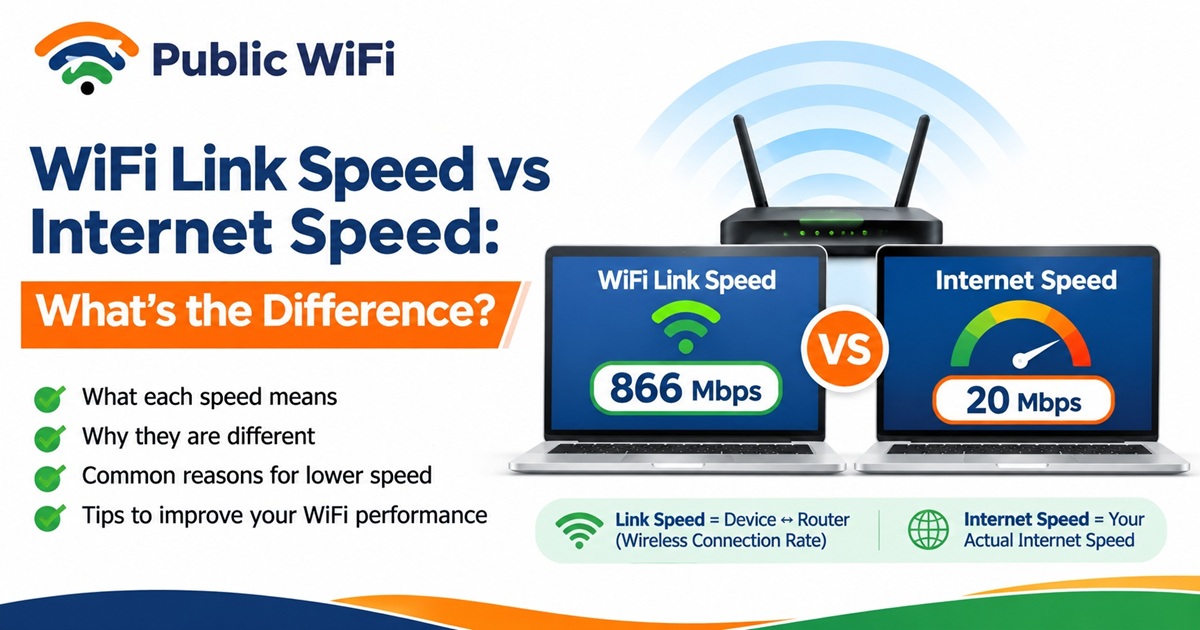
Have you ever checked your smartphone or laptop's WiFi settings and noticed a connection speed of 433 Mbps, 866 Mbps, or even 1200 Mbps, while your internet speed test shows only 20 Mbps?
Does this mean something is wrong with your WiFi connection?
Not necessarily.
Many internet users confuse WiFi link speed with actual internet speed. Although both are measured in megabits per second (Mbps), they represent different aspects of network performance.
Understanding this difference can help you troubleshoot slow internet connections, choose suitable internet plans, and enjoy a better experience when using public WiFi hotspots.
What Is WiFi Link Speed?
WiFi link speed is the negotiated physical-layer connection rate between your wireless device and a WiFi router or access point.
It is sometimes referred to as:
- WiFi connection speed
- Wireless link rate
- PHY rate
- Wireless connection rate
- Negotiated WiFi speed
For example, if your smartphone displays a WiFi link speed of 866 Mbps, it means that your device and the wireless access point are communicating at a negotiated physical-layer rate of 866 Mbps.
However, this does not mean that you can download files from the internet at 866 Mbps.
WiFi link speed represents the wireless connection rate within the local network rather than the speed provided by your internet service provider.
Additionally, actual usable wireless throughput is normally lower than the negotiated link speed because of networking overhead, shared airtime, interference, and other factors.
What Is Internet Speed?
Internet speed refers to the rate at which data is transferred between your device and destinations on the internet.
It determines how quickly you can perform activities such as:
- Browsing websites
- Watching online videos
- Downloading files
- Uploading documents
- Attending online classes
- Participating in video meetings
- Using cloud-based applications
- Streaming music
Internet speed depends on several factors, including your subscribed internet plan, network capacity, wireless connection quality, and internet service provider infrastructure.
For example, if you subscribe to a 30 Mbps internet plan, your internet download speed will generally be limited by that plan, even if your WiFi link speed is 1200 Mbps.
WiFi Link Speed vs Internet Speed: Key Differences
| Feature | WiFi Link Speed | Internet Speed |
|---|---|---|
| Meaning | Negotiated wireless connection rate | Actual data transfer rate over the internet |
| Connection | Device to router or access point | Device to internet destination |
| Measurement | Mbps or Gbps | Mbps or Gbps |
| Depends on | WiFi technology, signal quality, channel width and device capabilities | Internet plan, network demand, connection quality and service infrastructure |
| How to check | WiFi settings or network diagnostics | Online internet speed test |
| Affects local network transfers | Yes | Not directly |
| Affects online streaming | Indirectly | Directly |
| Can exceed your internet plan speed | Yes | Normally limited by the applicable plan and network conditions |
Both measurements are important, but they should not be interpreted as the same thing.
How Does Data Travel from Your Device to the Internet?
When you connect to a WiFi hotspot, your device communicates with a wireless access point, which connects to the internet through network infrastructure.
A simplified connection looks like this:
Smartphone or Laptop → WiFi Access Point → Network Gateway → Internet Service Provider → Internet
Different parts of this connection may support different speeds.
For example:
- WiFi link speed: 866 Mbps
- Local network capacity: 1 Gbps
- Subscribed internet plan: 30 Mbps
- Actual measured download speed: 28 Mbps
In this situation, the wireless connection supports a much higher rate than the internet subscription.
The internet plan and other network conditions determine the actual speed experienced by the user.
Why Is Actual Internet Speed Lower Than WiFi Link Speed?
There are several reasons why your internet speed may be significantly lower than the WiFi link speed displayed on your device.
1. Internet Plan Speed Limits
Your subscribed internet plan is one of the primary factors determining your maximum internet speed.
Consider the following illustrative examples:
| WiFi Link Speed | Internet Plan | Example Measured Speed |
|---|---|---|
| 72 Mbps | 10 Mbps | 9 Mbps |
| 150 Mbps | 15 Mbps | 14 Mbps |
| 433 Mbps | 20 Mbps | 19 Mbps |
| 866 Mbps | 30 Mbps | 28 Mbps |
| 1200 Mbps | 100 Mbps | 95 Mbps |
These values are examples only. Actual performance depends on network conditions and equipment.
A faster WiFi connection cannot automatically increase the speed of your internet subscription.
2. WiFi Protocol Overhead
Wireless communication requires more than simply transmitting user data.
WiFi networks also exchange information for:
- Device coordination
- Data acknowledgements
- Error detection
- Network management
- Security and encryption
- Retransmission of lost data
These processes consume wireless airtime and reduce the amount available for useful application data.
As a result, actual wireless throughput is generally lower than the displayed WiFi link speed.
3. Shared Wireless Airtime
WiFi is a shared communication medium.
When multiple devices connect to the same access point or operate on the same channel, they may compete for available wireless airtime.
This is particularly important in public locations such as:
- Cafés and restaurants
- Railway stations
- Airports
- Shopping malls
- Educational institutions
- Hotels
- Office complexes
- Public WiFi hotspots
Even when your device displays a high link speed, heavy network activity can reduce the actual throughput available to you.
4. WiFi Signal Strength and Distance
Your WiFi link speed may change depending on your distance from the wireless access point and surrounding conditions.
Walls, furniture, metal objects, and other physical obstacles can weaken wireless signals.
As signal quality decreases, your device may automatically negotiate a lower link rate to maintain a stable connection.
Moving closer to the access point can sometimes improve wireless performance.
Read more: WiFi Signal Strength Explained: Why Full Bars Don't Always Mean Fast Internet.
5. Wireless Interference
Nearby wireless networks and electronic devices can interfere with WiFi communication.
Common sources of interference include:
- Neighbouring WiFi routers
- Bluetooth devices
- Microwave ovens
- Some wireless cameras
- Overlapping wireless channels
- Other radio-frequency equipment
Interference can cause transmission errors, retransmissions, and reduced wireless throughput.
6. Device Hardware Limitations
Not all smartphones, laptops, tablets, and wireless adapters support the same WiFi capabilities.
Your wireless connection rate depends on factors such as:
- Supported WiFi generation
- Number of spatial streams
- Supported frequency bands
- Channel width
- Wireless antenna design
- Hardware and driver capabilities
Even when a router supports very high wireless speeds, an older device may negotiate a much lower connection rate.
7. Internet Server Performance
The website, application, or server you are accessing can also affect download and upload speeds.
For example, downloading a large file from an overloaded server may be slow even when your local WiFi connection and internet service are performing normally.
8. Network Management and Speed Limits
Public WiFi providers and businesses may apply network management policies to distribute available bandwidth among users.
These policies may include:
- Per-user speed limits
- Subscription-based speed limits
- Fair usage policies
- Traffic prioritisation
- Bandwidth allocation
Such measures can help prevent a small number of users from consuming excessive network resources.
What Is the Difference Between Link Speed, Throughput and Bandwidth?
These three networking terms are frequently used interchangeably, but they have different meanings.
| Term | Meaning |
|---|---|
| Link speed | The negotiated physical-layer communication rate |
| Bandwidth | The available or configured data-carrying capacity of a connection |
| Throughput | The amount of data successfully transferred over a given period |
| Goodput | The useful application data successfully delivered, excluding protocol overhead and retransmissions |
| Latency | The time required for data to travel across a network |
A network may have a high link speed but relatively low throughput because of interference, congestion, or other limitations.
Similarly, a connection with sufficient throughput may still provide a poor experience in real-time applications if latency or packet loss is high.
Read more: WiFi Latency Explained: Ping, Jitter & Packet Loss.
How Different WiFi Generations Affect Link Speed
Wireless networking technology has evolved significantly over the years.
Newer WiFi generations generally support higher potential connection rates and improved wireless efficiency.
| WiFi Generation | IEEE Standard | Maximum Theoretical PHY Rate |
|---|---|---|
| WiFi 4 | 802.11n | Up to 600 Mbps |
| WiFi 5 | 802.11ac | Up to approximately 6.9 Gbps |
| WiFi 6 | 802.11ax | Up to 9.6 Gbps |
| WiFi 6E | 802.11ax with 6 GHz support | Up to 9.6 Gbps |
| WiFi 7 | 802.11be | Up to approximately 46 Gbps |
Note: These are theoretical maximum rates under specified technical configurations, not typical speeds achievable by individual consumer devices. Actual rates depend on equipment, channel width, spatial streams, signal quality, available spectrum, and regional regulations.
A WiFi 7 router does not automatically provide gigabit internet speeds unless the internet connection and supporting infrastructure offer sufficient capacity.
How to Check WiFi Link Speed on Your Device
Most modern operating systems provide information about the current wireless connection.
Check WiFi Link Speed on Android
On many Android smartphones:
- Open Settings.
- Select WiFi or Network & Internet.
- Tap the connected WiFi network.
- Open network details.
- Look for Link Speed, Transmit Link Speed, or Receive Link Speed.
The available information may vary depending on the smartphone manufacturer and Android version.
Check WiFi Link Speed on Windows
On Windows 11:
- Open Settings.
- Select Network & Internet.
- Click WiFi.
- Open the connected network's properties.
- Look for Link speed (Receive/Transmit).
Alternatively, open Command Prompt and execute:
netsh wlan show interfaces
Look for the following values:
- Receive rate (Mbps)
- Transmit rate (Mbps)
- Signal
- Radio type
- Channel
Receive and transmit rates may differ depending on the wireless connection.
Check WiFi Link Speed on macOS
On supported macOS versions:
- Press and hold the Option key.
- Click the WiFi icon in the menu bar.
- Review the available wireless connection details.
- Look for the transmit rate, RSSI, channel, and PHY mode.
The available options may differ depending on your macOS version.
Check WiFi Link Speed on iPhone
iPhones generally do not display the negotiated WiFi link speed directly in standard WiFi settings.
Compatible router management tools or access point dashboards may provide additional information about connected devices.
However, you can easily measure your actual internet speed using a browser-based speed testing service.
How to Check Your Actual Internet Speed
You can measure internet connection performance using online speed testing tools.
Popular options include:
- Speedtest by Ookla
- FAST.com
- Cloudflare Speed Test
Steps to Perform an Accurate Internet Speed Test
- Connect to the WiFi network you want to test.
- Pause large downloads and background updates.
- Temporarily stop unnecessary video streaming.
- Open a trusted internet speed testing website.
- Start the speed test.
- Review the download speed, upload speed, and latency.
- Repeat the test at different times to compare results.
Speed test results may vary depending on server selection, network demand, device performance, and wireless conditions.
Remember that an internet speed test can consume a significant amount of data, particularly on fast connections.
Understanding Mbps vs MB/s
Another common source of confusion is the difference between megabits and megabytes.
- Mbps: Megabits per second
- MB/s: Megabytes per second
One byte contains eight bits.
Therefore:
Download speed in MB/s = Internet speed in Mbps ÷ 8
| Internet Speed | Theoretical Download Rate |
|---|---|
| 10 Mbps | 1.25 MB/s |
| 15 Mbps | 1.875 MB/s |
| 20 Mbps | 2.5 MB/s |
| 30 Mbps | 3.75 MB/s |
| 50 Mbps | 6.25 MB/s |
| 100 Mbps | 12.5 MB/s |
| 300 Mbps | 37.5 MB/s |
| 1000 Mbps | 125 MB/s |
Actual file download rates may be lower because of protocol overhead, server limitations, and network conditions.
For example, if you subscribe to a 20 Mbps internet plan and your download manager displays approximately 2.3 MB/s, your connection may be performing close to its expected speed.
Why Does My WiFi Show 866 Mbps but Download Speed Is Only 20 Mbps?
This is a common situation and does not necessarily indicate a technical problem.
Imagine that your laptop connects to a WiFi access point with a negotiated link speed of 866 Mbps.
However, your subscribed internet plan provides up to 20 Mbps.
Your wireless connection has sufficient capacity to support the internet plan, but the plan limits how quickly you can access online content.
In this example:
- WiFi link speed: 866 Mbps
- Internet plan speed: 20 Mbps
- Maximum theoretical file download rate: 2.5 MB/s
The high WiFi link speed provides additional local wireless capacity, but it does not increase your subscribed internet speed.
What Happens When WiFi Link Speed Is Lower Than Internet Speed?
The opposite situation can also occur.
For example, you may have a 100 Mbps internet plan, but your device connects to the wireless access point at a link speed of only 72 Mbps.
Because usable wireless throughput is normally lower than the link rate, you may not be able to achieve the full speed of your internet plan.
Possible reasons include:
- Weak wireless signal
- Older WiFi adapter
- Excessive distance from the access point
- Wireless interference
- Limited channel width
- Outdated wireless technology
- Network congestion
In this situation, improving the wireless connection may help you utilise more of your available internet bandwidth.
10 Ways to Improve Your Actual WiFi Performance
1. Choose the Right Frequency Band
The 2.4 GHz band generally offers better coverage over longer distances, while 5 GHz can provide higher wireless performance under suitable conditions.
Read our guide: 2.4 GHz vs 5 GHz WiFi: Speed, Range & Best Uses.
2. Move Closer to the Access Point
Reducing the distance between your device and the wireless access point can improve signal quality and potentially increase the negotiated connection rate.
3. Avoid Physical Obstacles
Thick walls, metal cabinets, concrete structures, and large electronic appliances can reduce wireless signal quality.
Choose a location with fewer obstacles where possible.
4. Use Modern WiFi-Compatible Devices
Devices supporting newer WiFi technologies may offer improved wireless performance and efficiency when connected to compatible access points.
5. Update Wireless Drivers and Software
Keeping your operating system and wireless network drivers updated can help resolve compatibility and connectivity issues.
6. Reduce Background Internet Activity
Applications running in the background may consume internet bandwidth without your knowledge.
Pause unnecessary cloud backups, application updates, and large downloads when performing important online activities.
7. Disconnect Unused Devices
Unused devices may still generate background network traffic.
Disconnecting unnecessary devices can reduce demand on the available internet connection.
8. Use a Suitable Internet Plan
Choose an internet plan that matches your usage requirements.
Basic web browsing and messaging generally require less bandwidth than HD streaming, large downloads, or simultaneous use across multiple devices.
Read more: How Much Internet Speed Do You Need?.
9. Use Less Congested Wireless Channels
If you manage your own router, selecting suitable wireless channels can help reduce interference.
For public WiFi networks, channel selection is normally managed by the hotspot operator.
10. Choose a Reliable Public WiFi Provider
A well-managed public WiFi network can help deliver a more consistent experience through appropriate network capacity, access point placement, bandwidth management, and infrastructure monitoring.
Does a Higher WiFi Link Speed Improve Online Gaming?
A higher WiFi link speed can improve wireless capacity, but it does not necessarily guarantee a better gaming experience.
Online gaming performance also depends on:
- Low latency
- Low jitter
- Minimal packet loss
- Stable connectivity
- Network congestion
- Distance to the gaming server
A stable 20 Mbps internet connection with low latency may provide a better gaming experience than a much faster connection with significant packet loss and delays.
For real-time applications, connection stability is often more important than maximum download speed.
Why WiFi Link Speed Matters for Public WiFi Networks
Public WiFi networks are designed to serve multiple users across supported locations.
Network operators must consider more than the total available internet bandwidth.
Important factors include:
- Wireless access point capacity
- Number of simultaneously connected users
- Available wireless spectrum
- Network coverage
- Channel utilisation
- Internet backhaul capacity
- Bandwidth distribution
- Network security
A high wireless connection rate can help devices communicate efficiently, potentially reducing the airtime required to transfer a given amount of data.
However, reliable public WiFi performance requires a balance between wireless capacity, internet bandwidth, and user demand.
Choosing the Right Public WiFi Internet Plan
When selecting a public WiFi plan, focus on your actual internet requirements rather than the maximum theoretical speed supported by your device.
Consider the following factors:
| Usage | Important Requirement |
|---|---|
| Messaging and browsing | Reliable basic connectivity |
| Online classes | Stable download speed |
| Video meetings | Consistent upload and download performance |
| HD video streaming | Sufficient sustained bandwidth |
| Online gaming | Low latency and packet loss |
| Remote work | Stable connectivity and upload capacity |
| Multiple devices | Adequate shared bandwidth and supported device limits |
| Large file downloads | Higher sustained download speed |
Choosing an appropriate internet plan can help you balance performance, affordability, and data usage.
Stay Connected with Public WiFi
Public WiFi aims to make wireless internet connectivity more accessible and affordable across supported locations in India.
Whether you are a student attending online classes, a professional working remotely, a traveller staying connected, or someone browsing the internet, choosing the right WiFi service can make a significant difference.
With Public WiFi, you can:
- Explore supported public WiFi hotspot locations.
- Compare available internet subscription plans.
- Connect multiple devices according to your subscribed plan.
- Access wireless internet at supported locations.
- Contact customer support for connectivity assistance.
Get started today:
- Explore Public WiFi Coverage
- Compare Public WiFi Internet Plans
- Create Your Public WiFi Account
- Contact Public WiFi Support
Actual internet performance and service availability may vary depending on location, subscription plan, device capabilities, wireless conditions, and network demand.
Frequently Asked Questions (FAQs)
Is WiFi link speed the same as internet speed?
No. WiFi link speed represents the negotiated wireless connection rate between your device and the access point. Internet speed represents the actual data transfer rate between your device and internet destinations.
Is 433 Mbps WiFi link speed good?
A 433 Mbps link rate is generally sufficient for many everyday internet activities and typical broadband plans. However, actual performance depends on wireless conditions, usable throughput, and internet bandwidth.
Why is my internet slow even though my WiFi link speed is high?
Your internet plan, shared network bandwidth, server performance, network congestion, or internet service provider limitations may restrict actual internet speed.
Can WiFi link speed be higher than internet speed?
Yes. WiFi link speed frequently exceeds internet subscription speed because wireless equipment may support much higher local connection rates.
Can internet speed exceed WiFi link speed?
An internet subscription can support a higher speed than your device's current wireless link rate. However, actual internet throughput over that individual wireless link cannot exceed its effective data-carrying capacity.
Does upgrading to WiFi 7 increase internet speed?
Upgrading to WiFi 7 may improve wireless capacity and efficiency with compatible equipment. However, it will not automatically increase your subscribed internet plan speed.
Why does WiFi link speed keep changing?
Devices dynamically adjust wireless connection rates based on signal quality, interference, transmission errors, distance, and other network conditions.
What is the difference between receive and transmit link speed?
Receive link speed represents the negotiated rate for receiving wireless data, while transmit link speed represents the rate for sending wireless data. These values may differ depending on connection conditions and equipment.
Does a strong WiFi signal guarantee high internet speed?
No. Strong signal strength indicates good received wireless signal levels, but internet performance also depends on network capacity, interference, congestion, and your internet subscription.
Can public WiFi providers limit internet speed?
Yes. Public WiFi providers may apply subscription-based speed limits, fair usage policies, and bandwidth management rules to distribute network resources among connected users.
Which is more important: WiFi link speed or internet speed?
Both are important. WiFi link speed determines the potential wireless connection capacity, while actual internet speed determines how quickly you can access online content. For most internet users, measured throughput, latency, and connection stability are more useful indicators of everyday performance.
Conclusion
Understanding the difference between WiFi link speed and internet speed can help you make better decisions about wireless connectivity.
A high WiFi link speed indicates that your device has negotiated a potentially fast wireless connection, but it does not guarantee equally fast internet access.
Your actual online experience depends on a combination of wireless signal quality, internet subscription speed, network capacity, latency, and overall infrastructure performance.
By choosing suitable WiFi technology, maintaining a stable wireless connection, and selecting an internet plan that meets your needs, you can enjoy a more reliable and efficient internet experience.
Explore affordable wireless connectivity at supported locations across India with Public WiFi.
Public WiFi — Making wireless internet more accessible across India.